
Tags
Overview
Tags are a flexible way to categorize and organize your assets in Omeda. By applying tags to key assets—such as products, deployment types, message types, demographics, and behaviors—you can more easily understand and act on customer engagement.
Tags are especially powerful because they extend beyond asset organization. Once a customer engages with a tagged asset, that tag is automatically applied to the customer’s record and becomes visible in Audience Search. This allows you to quickly identify and analyze audiences based on the content and experiences they’ve interacted with.
Tags can be used directly within Audience Builder, enabling you to query and segment audiences directly based on tags in Audience Builder. This will make it easier to create dynamic segments tied to customer interests, behaviors, brands, or markets—without needing to reference individual assets.
Why it matters:
-
Build audiences without selecting assets one by one
-
Create scalable, reusable segmentation logic
-
Adapt quickly as your tagging strategy evolves
In short, tags help you connect asset-level strategy to customer-level insights—in Audience Search and Audience Builder.
Benefits of Using Tags
Using tags provides several advantages:
-
Improved organization: Group related assets across products, messages, behaviors, and demographics using a consistent tagging strategy.
-
Enhanced audience insights: See which tags are associated with a customer based on their engagement history in Audience Search.
-
More flexible segmentation: Build and refine audiences in Audience Builder using tag associations or tag-driven engagement.
How to Use Tags
Required Permissions
To create and manage tags, you must have access to Database Settings and permission to create/manage tags.
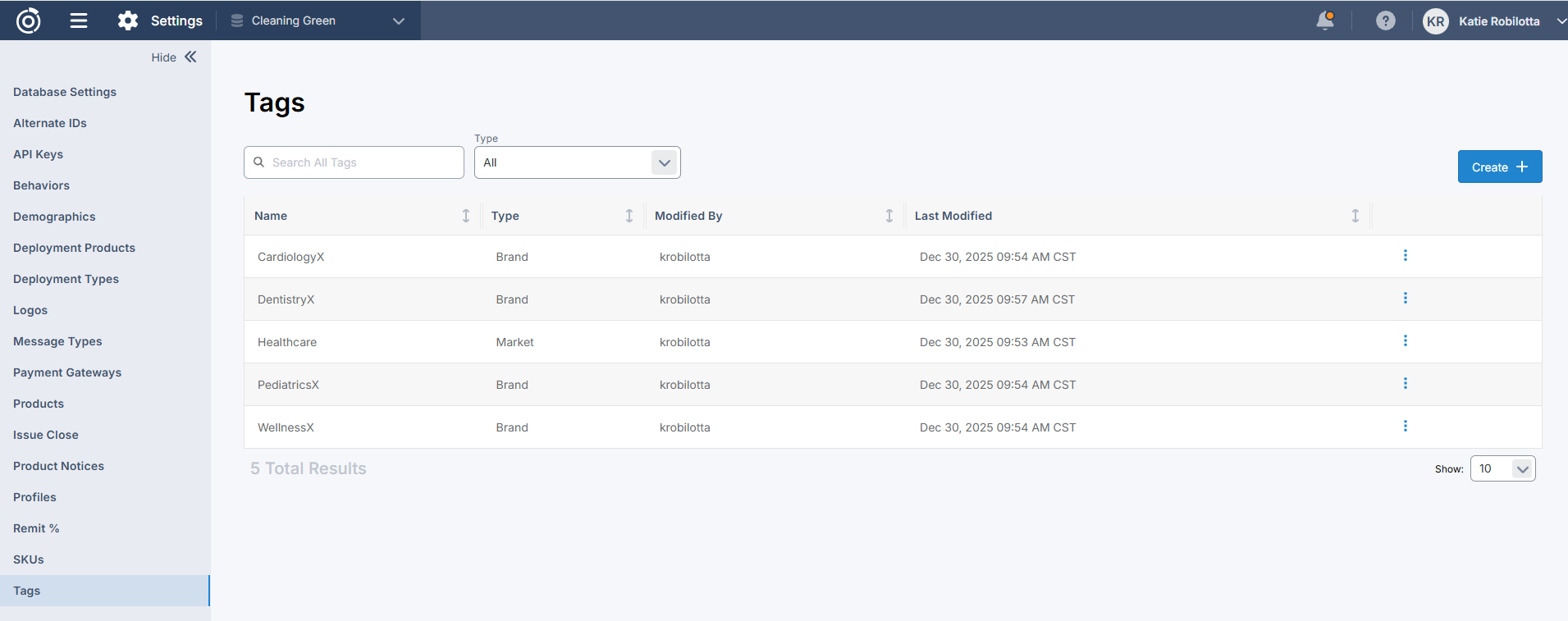
Creating and Managing Tags
-
Navigate to Database Settings.
-
Select the Tags tab.
-
Click Create Tag.
-
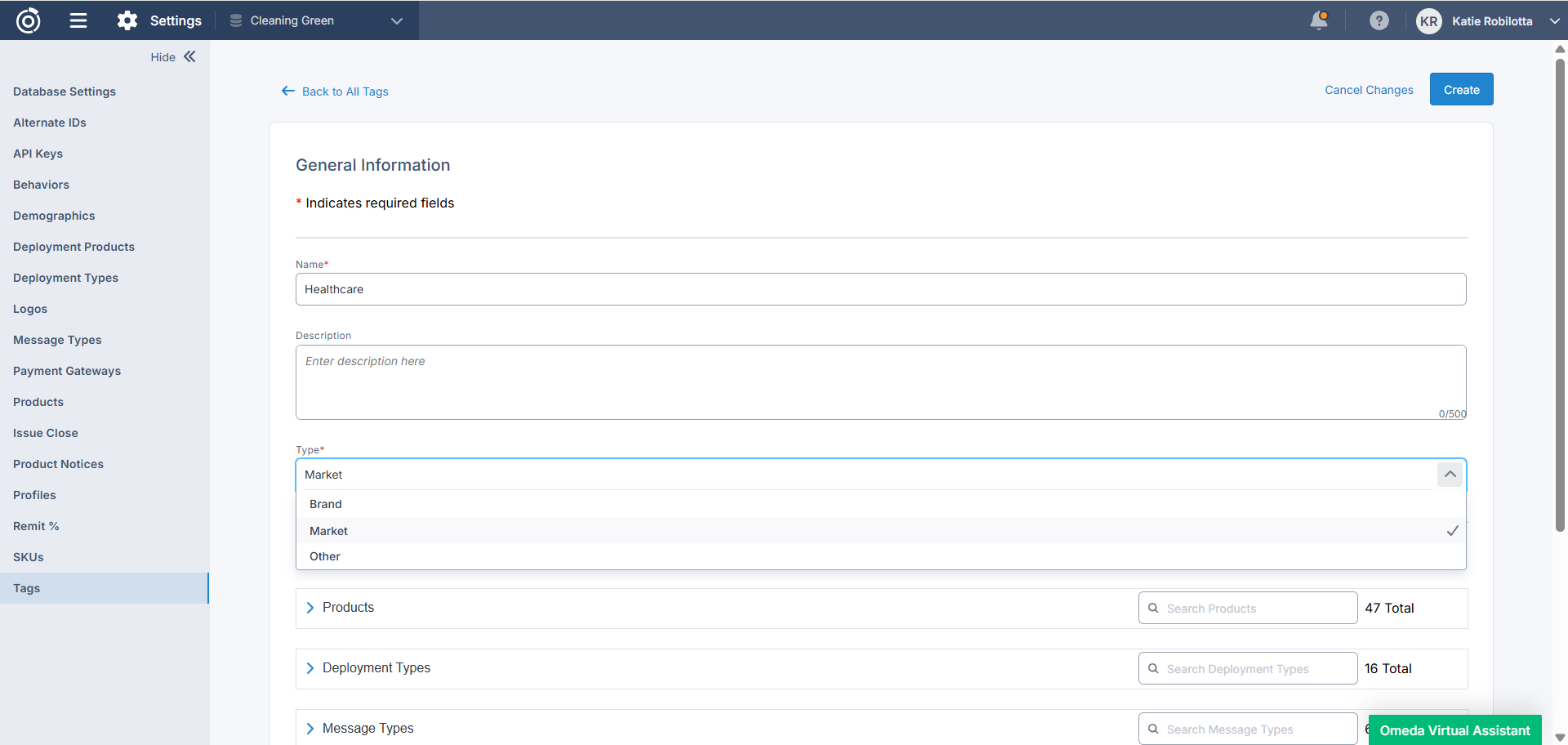
Configure the tag:
-
Name: Enter a clear, descriptive name for the tag.
-
Description (optional): Provide a more detailed description on what the tag is.
-
Type: Choose one of the following:
-
Brand
-
Market
-
Other
-
-
-
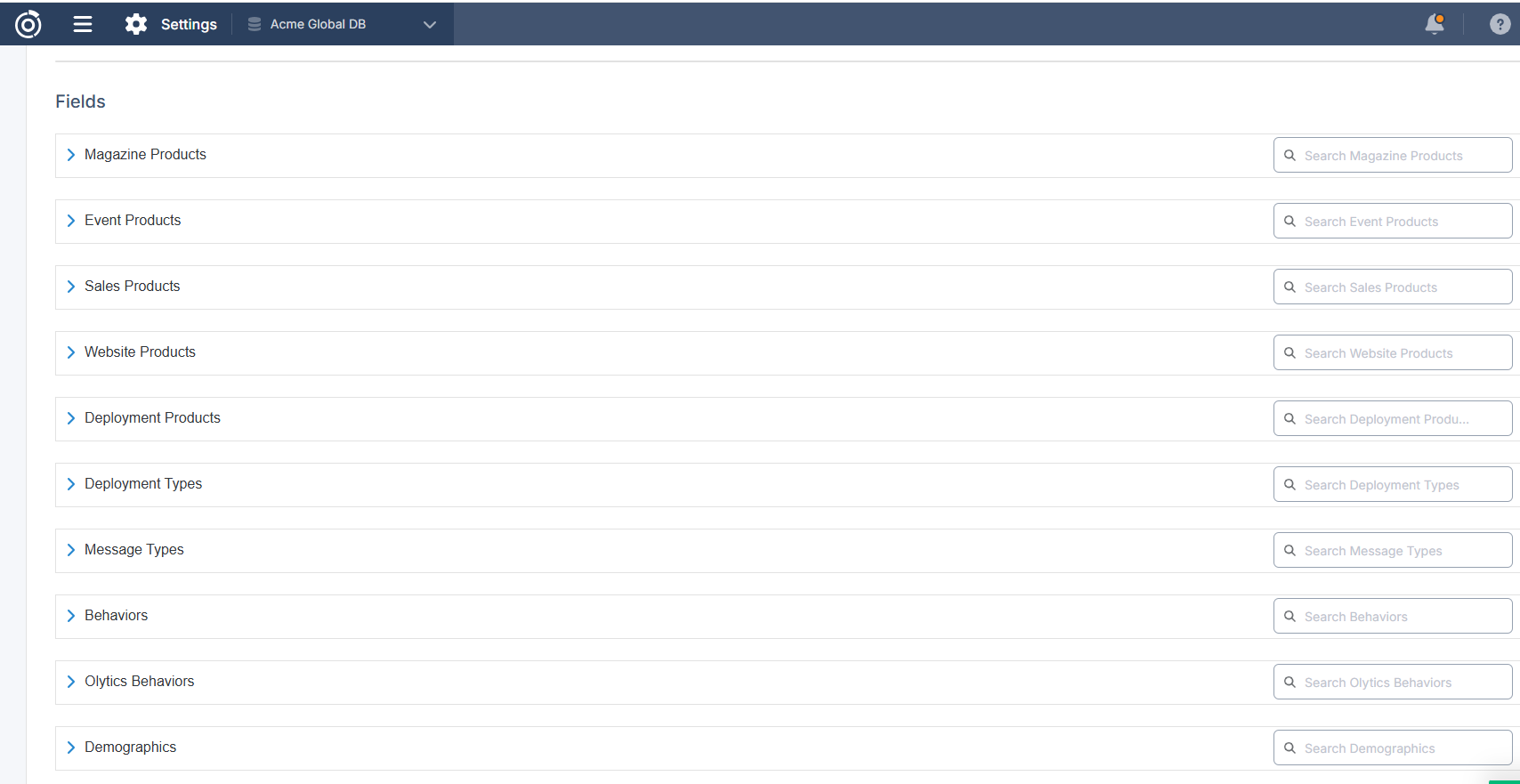
Add assets to the tag by selecting the checkboxes in each applicable section:
-
Products
-
Magazines
-
Events
-
Sales
-
Websites
-
Deployment (Newsletters, Email Deployment)
-
-
Deployment Types
-
Message Types
-
Behaviors
-
Demographics
-
Olytics Behaviors
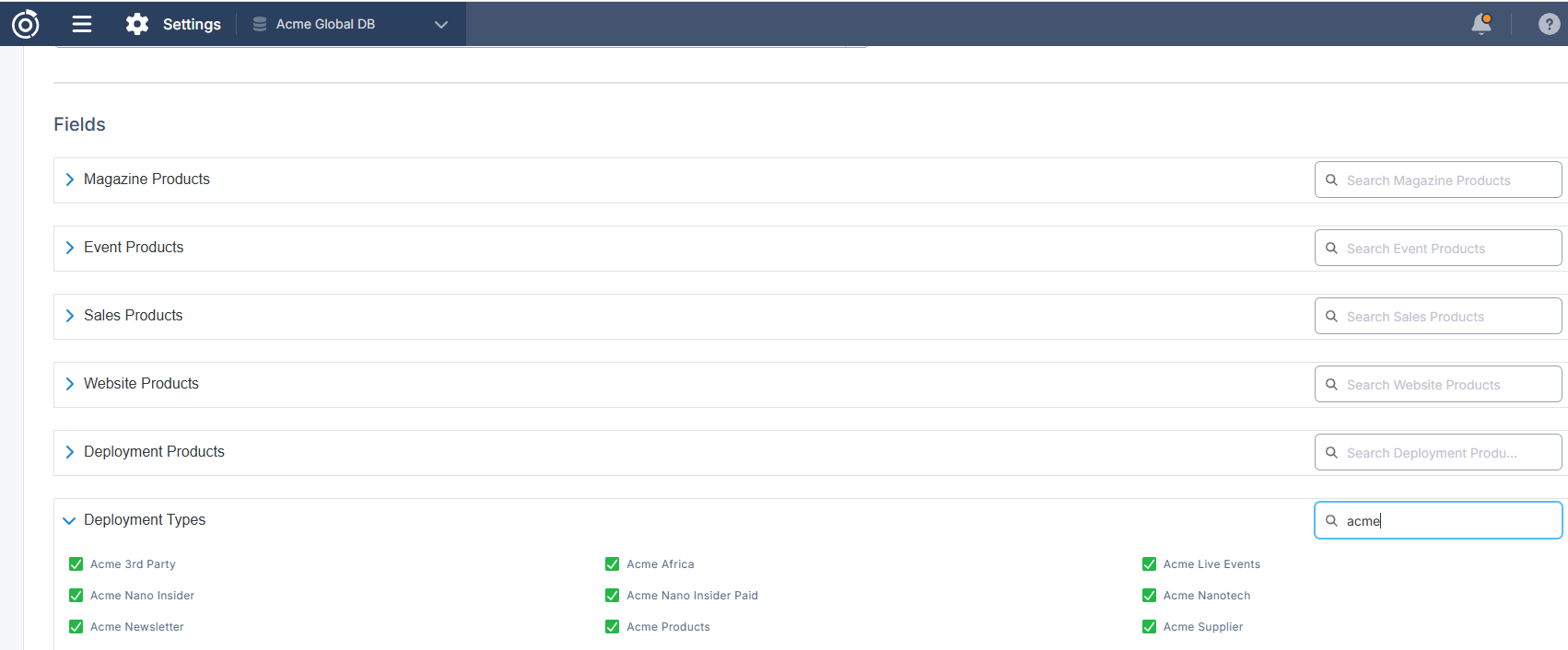
-
-
Save the tag.
Once saved, the tag is applied to all selected assets.
Viewing Tags on Assets
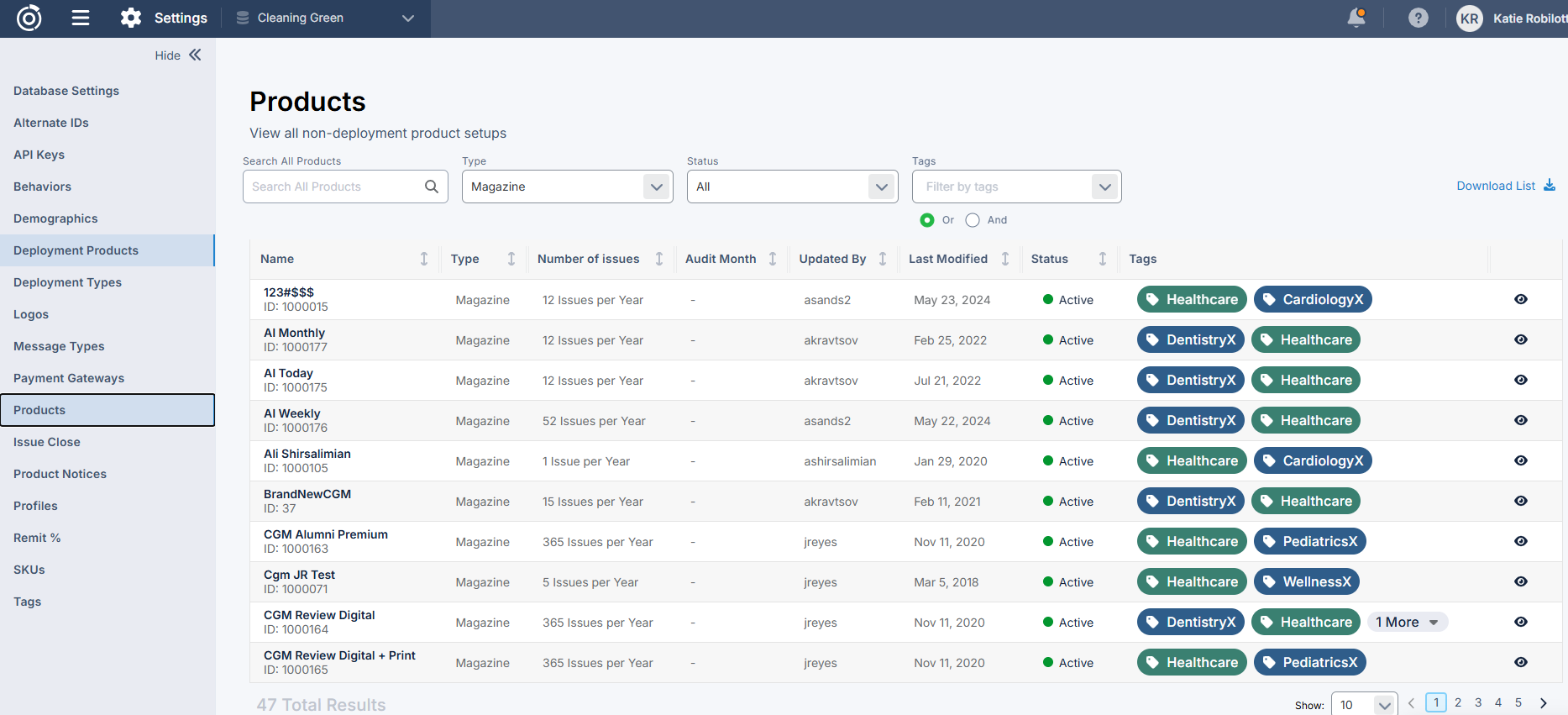
You can see which tags are associated with an asset directly within Database Settings:
-
Navigate to Products, Deployment Types, Message Types, Behaviors, or Demographics.
-
View the Tag column in each table to see associated tags for each asset.
-
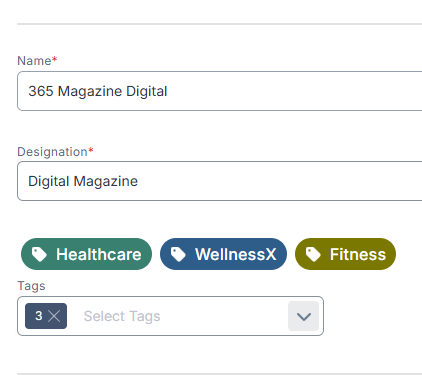
To make it easier to understand the type of tag from a visual reference, we dedicated a specific color to each tag type:
-
Market: Green
-
Brand: Blue
-
Other: Brown
-
-
This makes it easy to audit and confirm how assets are categorized.
Adding Tags Directly to a Record
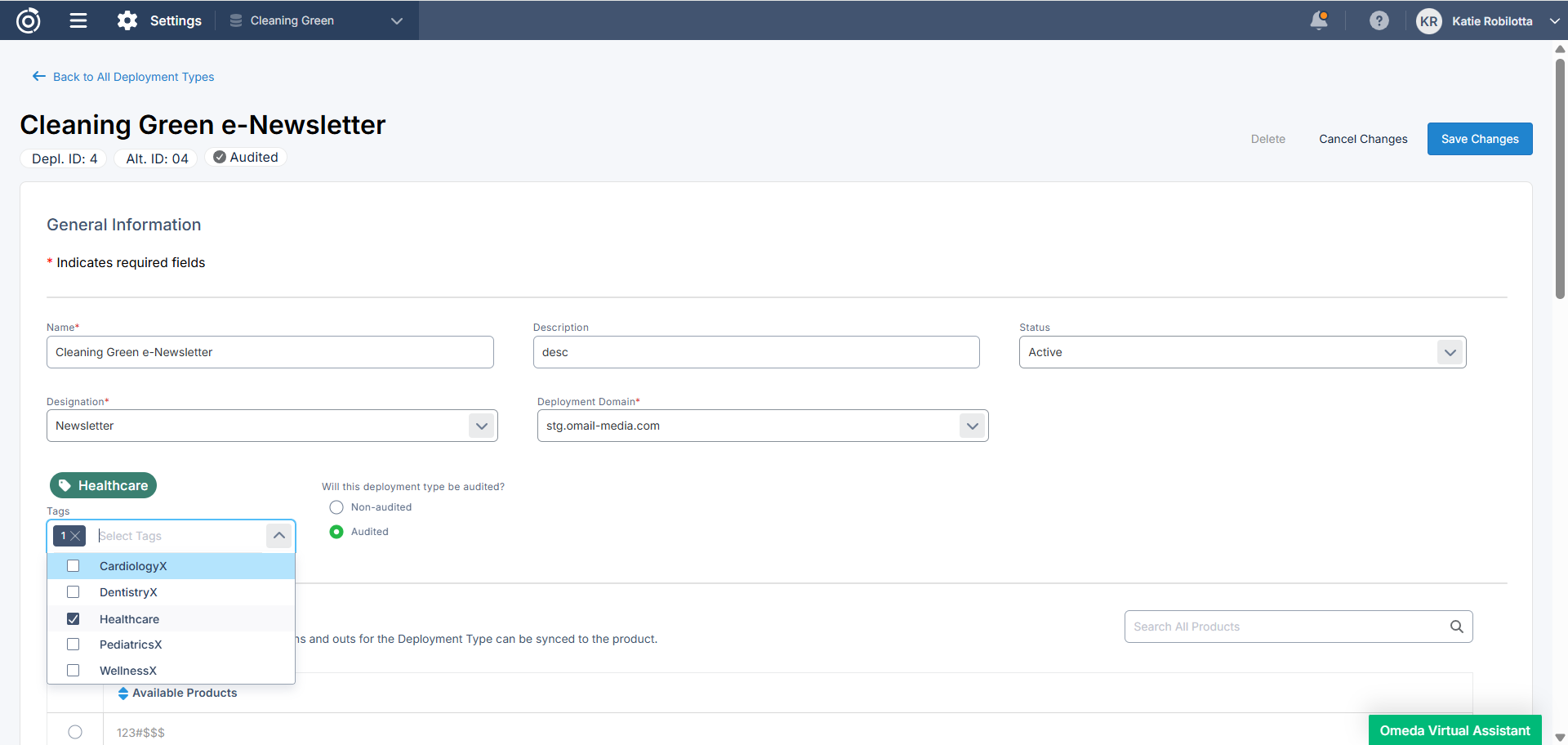
Tags can also be added or updated from within an individual asset record:
-
Go to Database Settings.
-
Open the record you want to edit (deployment type, message type, behavior, or demographic).
Note: Because Products are not editable, you will not be able to edit/add tags to products individually. You will need to go to the Tags section to add the products to the tags. -
Edit the record.
-
Add or update the associated tags.
-
Save your changes.
Tags in Audience Search
After a customer engages with any tagged asset, the corresponding tag is automatically applied to the customer’s record in Audience Search under the Tags section. By clicking on the tag, users can see how the tag was applied (from a subscription, opt-in, behavioral source, etc) and the date it was applied. Tags can be applied through multiple types of customer activity, including:
-
Opting in/out of a SMS message type or Email deployment type
-
Subscribing to a product (for example, a magazine or newsletter) or otherwise engaging with a tagged product
-
Responding to a demographic (such as selecting an answer tied to a tagged demographic)
-
Triggering a behavior (for example, visiting a web page or completing other tracked activities)
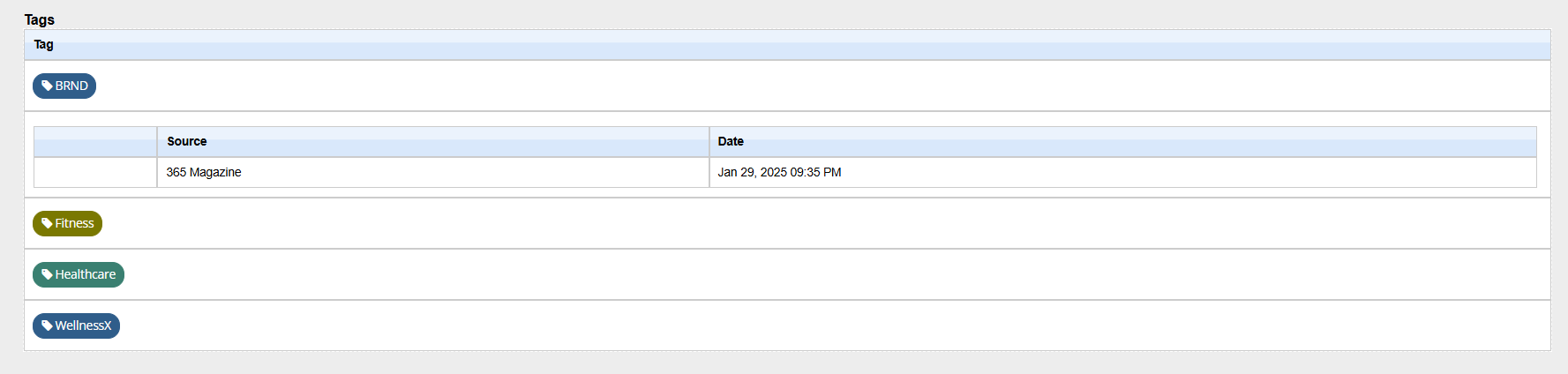
Because tags are applied based on engagement, be intentional about which assets you tag. For example, if you do not want customers to receive a brand, market, or other tag based solely on demographic responses, you should avoid tagging your demographics.
Tags in Audience Builder
Tags extend beyond Audience Search and can now be used directly in Audience Builder through two dedicated fields:
-
Tag Associations
-
Tag Engagement
These fields allow you to segment audiences based on either tag relationships or recent engagement tied to specific tags.
Learn more here: https://knowledgebase.omeda.com/omedaclientkb/audience-builder-tags
Tag Associations Field
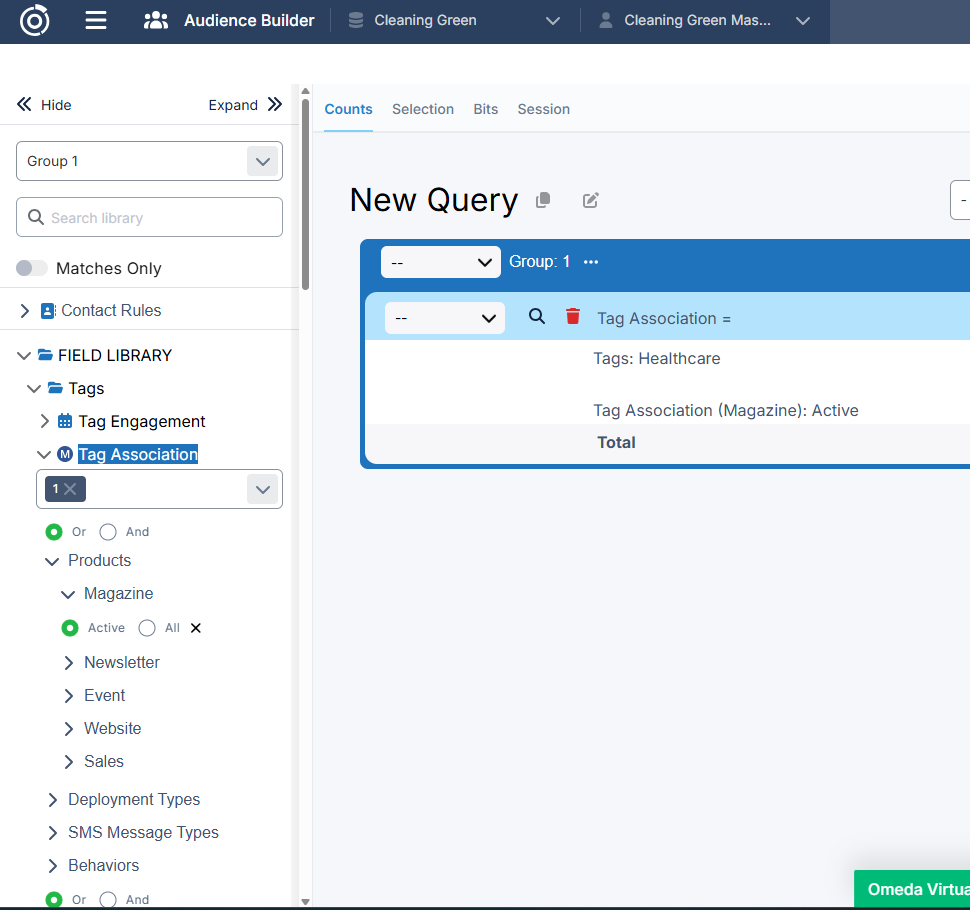
The Tag Associations field allows you to build audiences based on whether customers are associated with one or more selected tags.
Tag associations are derived from customer activity across tagged assets, including:
-
Subscriptions (Magazines, Newsletters, Events, Websites, Sales)
-
Deployment Types and Message Types (opt-ins / opt-outs)
-
Demographics
-
Behaviors (Standard and Olytics)
When using the field:
-
Select one or more tags.
-
Use AND / OR logic to determine whether customers must be associated with all selected tags or at least one.
-
Asset-based skittles will only query assets associated with the selected tag(s).
Use Case:
Ideal for segmenting customers by brand, market, content category, or other long-term tag-based classifications.
Tag Engagement Skittle
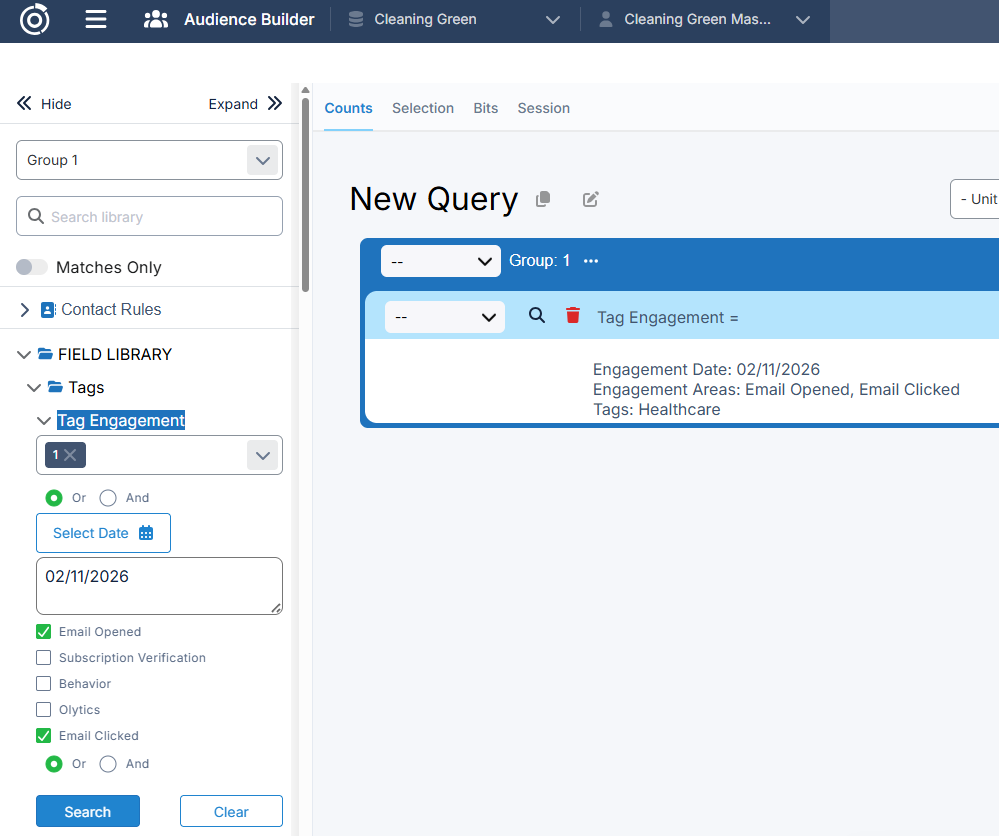
The Tag Engagement skittle allows you to build audiences based on recent engagement activity associated with one or more selected tags.
When configuring the skittle:
-
Select one or multiple tags.
-
Select a specific date or a date range.
-
Choose one or more engagement types:
-
Emails opened
-
Emails clicked
-
Behaviors
-
Olytics behaviors
-
Subscription verification
-
Results include customers whose engagement:
-
Is tied to the selected tag(s),
-
Matches the selected engagement type(s), and
-
Occurred within the selected timeframe.
Use Case:
Ideal for time-based targeting, such as identifying customers who recently engaged with a particular brand, campaign, or market.
Tags help bridge the gap between asset configuration and audience intelligence. With a thoughtful tagging strategy, you can unlock deeper insights and create more targeted, effective campaigns.
Table of Contents