
Overview
Delta Output keeps your other platforms in sync with Omeda. Each run sends only the records that were added, changed, or removed since the last run, instead of a full Audience Builder output. Files can be delivered to an SFTP/FTP site, an Amazon S3 bucket, or both.
How it works
-
Audience. The job looks at the audience you choose in Customer Selection: all known records, all anonymous and known records, or the records in an Audience Builder query.
-
File mappings. For each product or data category that has a file format set up, Delta Output checks those records for changes.
-
Output. When it detects a change, the job outputs the fields you mapped for that product. Products with no file format are ignored.
Schedule and first run
Jobs run daily at 6:30 AM Central Time. The first run has no previous data to compare against, so every record is sent as an Add. That makes the first file effectively a full file. After that, each run sends only the changes.
Who's included in each run
Within the audience you select, a record is only sent if it meets these rules:
-
The customer is active and not pending deactivation.
-
For a product file, the customer has a subscription to that product.
-
If the Header Key includes email, customers without a usable email address are left out.
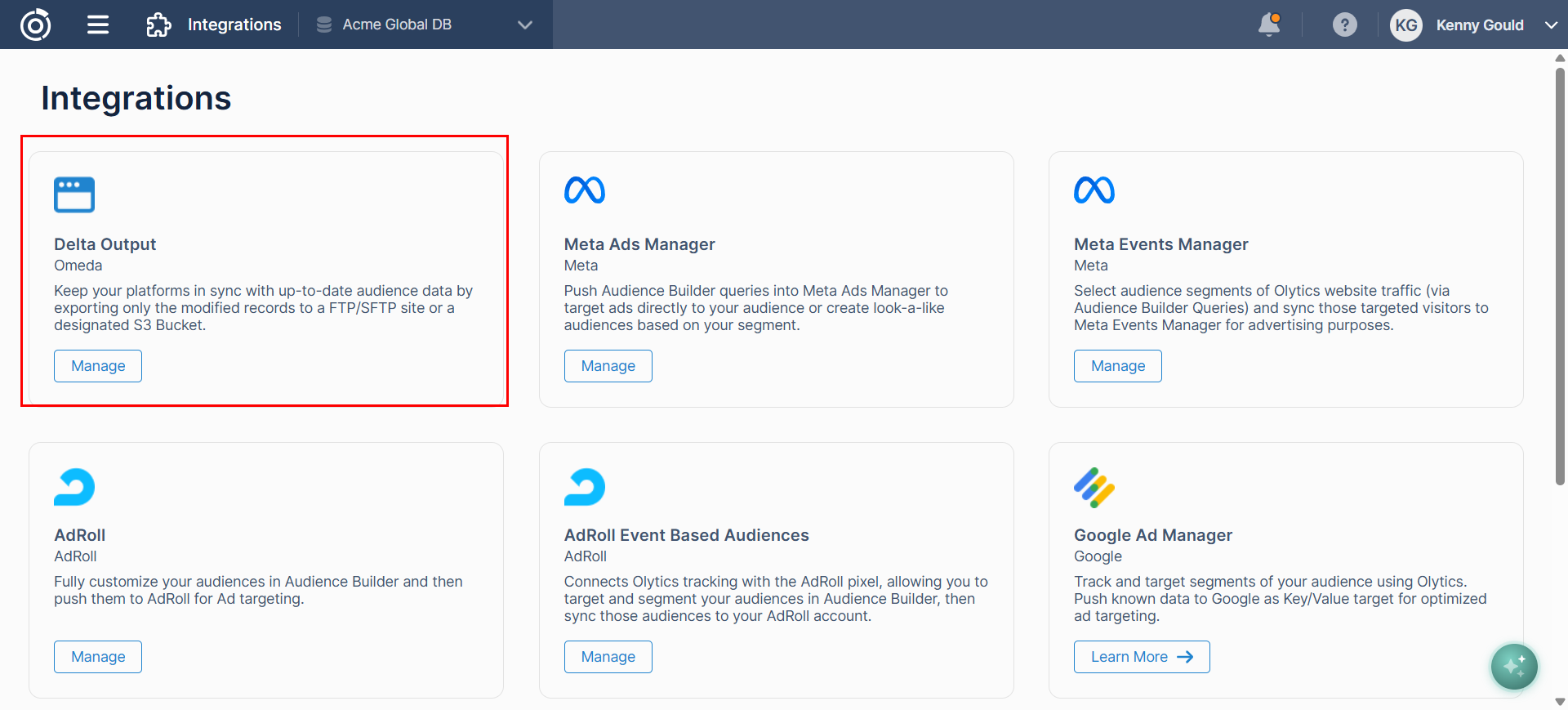
To find the tool, go to Integrations and click Manage on the Delta Output card.
Before you begin
Have your delivery details ready before you create a job.
-
SFTP/FTP: the login username, the password, and the endpoint URL (for example,
sftp://ftp.omeda.com). -
Amazon S3: credentials for the AWS account that owns the bucket.
-
Notifications: the email addresses that should receive job notifications.
-
Audience (optional): if you only want to monitor a specific audience instead of your whole database, build and save that Audience Builder query first. The job will then only check that audience for changes.
Delta Output Jobs dashboard
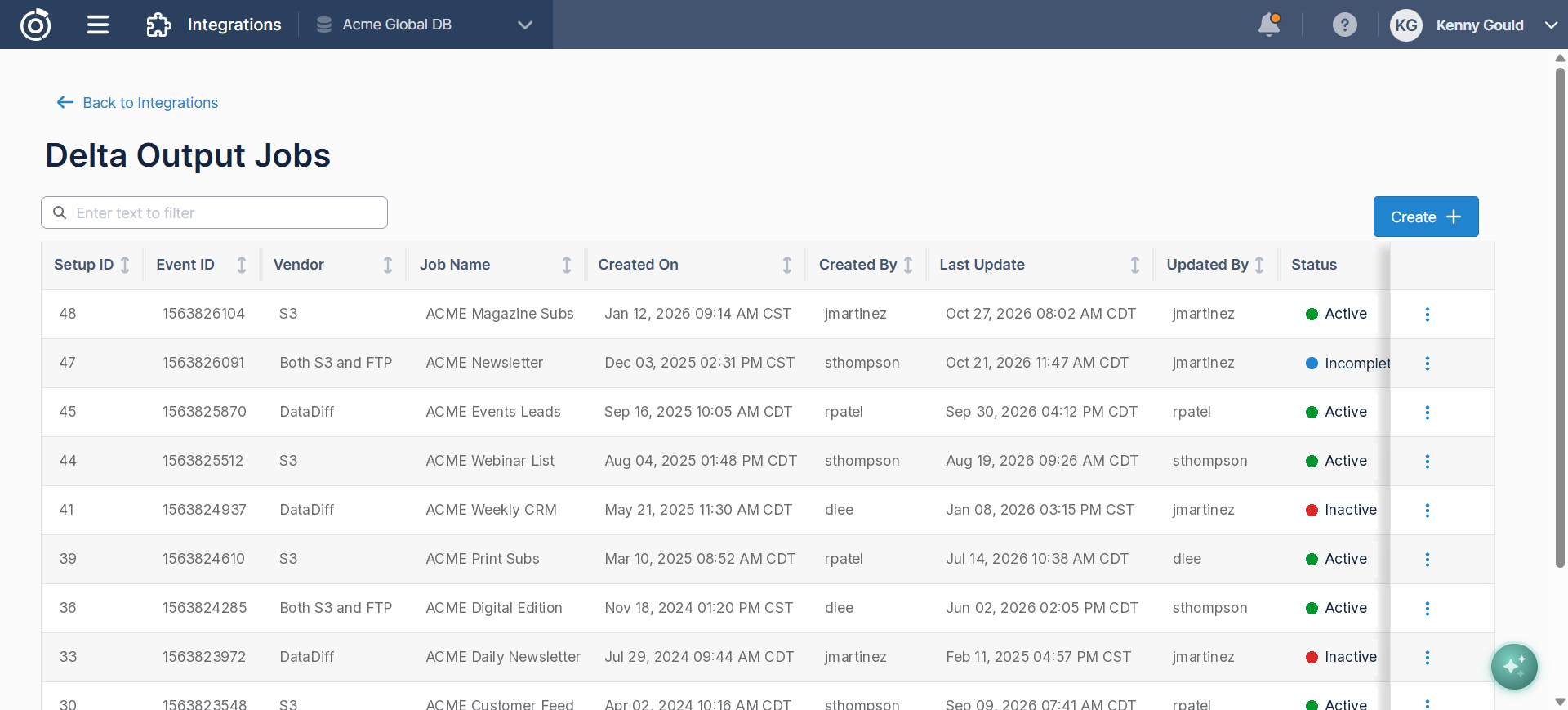
The dashboard lists every Delta Output job on the database. Use the filter box to search, and click Create to start a new job.
|
Column |
What it shows |
|---|---|
|
Setup ID |
The job's unique ID |
|
Event ID |
The ID of the event that runs the job |
|
Vendor |
The delivery method, for example S3, or Both S3 and FTP |
|
Job Name |
The name you gave the job |
|
Created On / Created By |
When the job was created, and by whom |
|
Last Update / Updated By |
When the job was last edited, and by whom |
|
Status |
Active, Inactive, or Incomplete |
An Incomplete job is missing required setup, such as valid delivery credentials. The status shows the reason, for example Incomplete - Invalid Credentials. Use the menu (⋮) at the end of a row to manage that job.
Setting Up a New Job
Step 1: Job Details
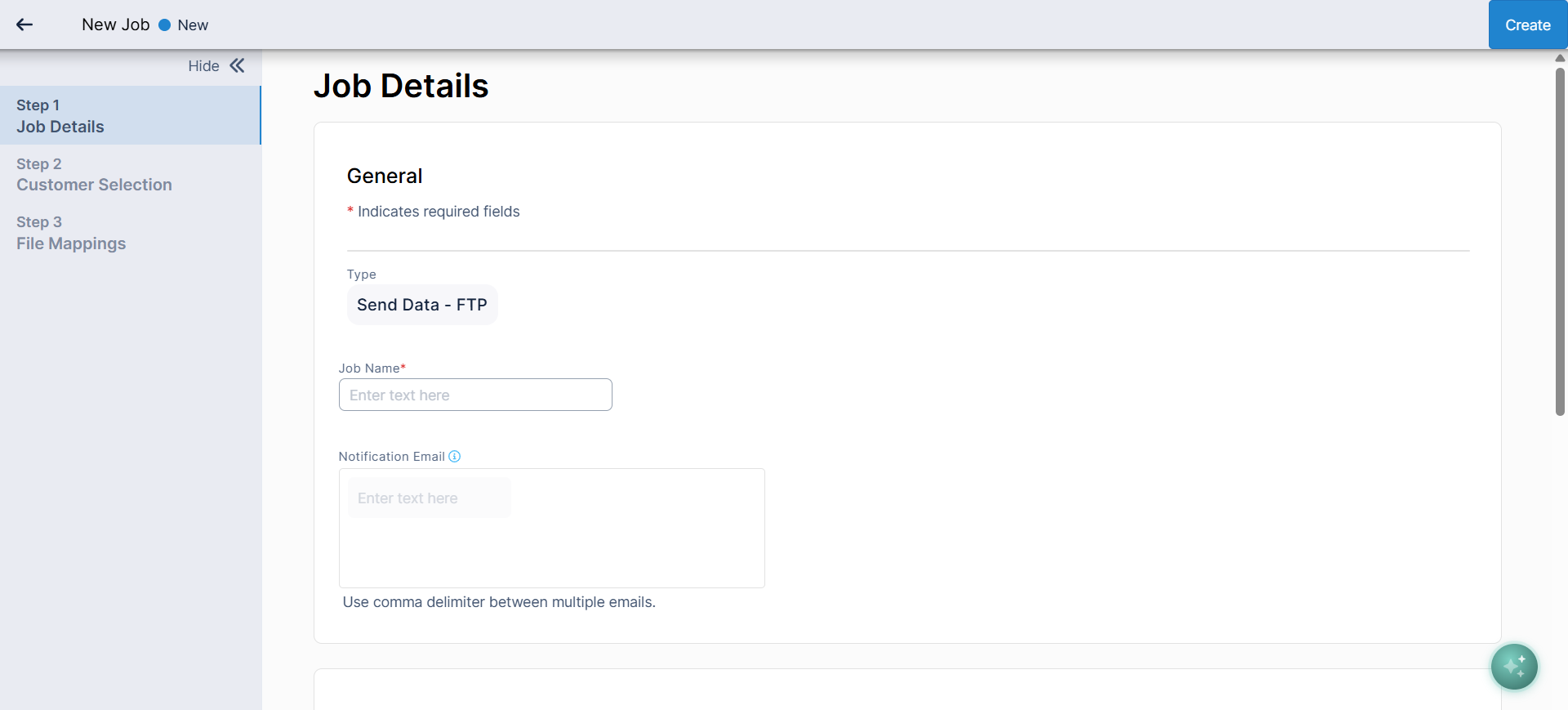
Enter the job's name and notification emails, then set up at least one delivery destination.
General
-
Type: set to Send Data - FTP.
-
Job Name (required): a name that tells you what the job sends and where it goes.
-
Notification Email: who gets job notifications. Separate multiple addresses with commas.
FTP Information
Turn on the FTP Information toggle to deliver to an SFTP/FTP site.
-
Client ID (required): the login username for the FTP site.
-
Client Password (required): the login password for the FTP site.
-
Endpoint URL (required): the address of the site, for example
sftp://ftp.omeda.com.
Click Test Connection to confirm Omeda can log in before you continue.
Deliver Through S3 Bucket
Turn on the Deliver Through S3 Bucket toggle to deliver to Amazon S3. If you're not logged in to S3, you'll see a warning. Click Re-Connect to Amazon S3, enter your credentials, and then select the bucket and region.
You can turn on both toggles to deliver the same files to FTP and S3.
Click Save and Continue.
Step 2: Customer Selection
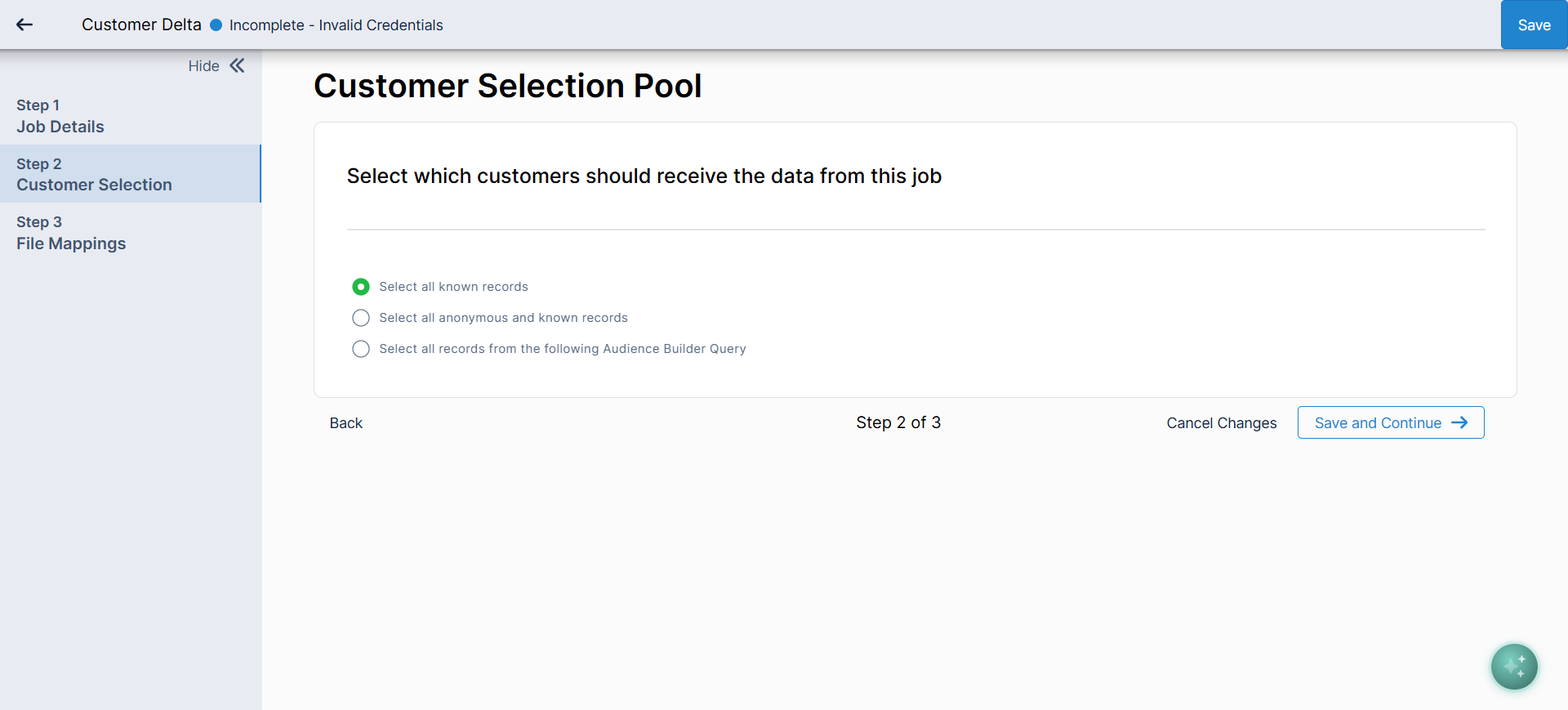
Choose which records the job checks for changes. Only records in this pool can be sent.
-
Select all known records: every identified record in the database. This is the default.
-
Select all anonymous and known records: identified records plus anonymous ones.
-
Select all records from the following Audience Builder Query: only the records in a saved query. Click Select Query to choose it.
Click Save and Continue.
Step 3: File Mappings
File mappings control what gets sent. A product is only checked for changes once it has a file format, so map every product you want included.
A job contains one or more file groups. Each file group holds one file per product, plus an optional Customer Information file. Every file is tied to an Audience Builder output criteria, which defines the fields in that file.
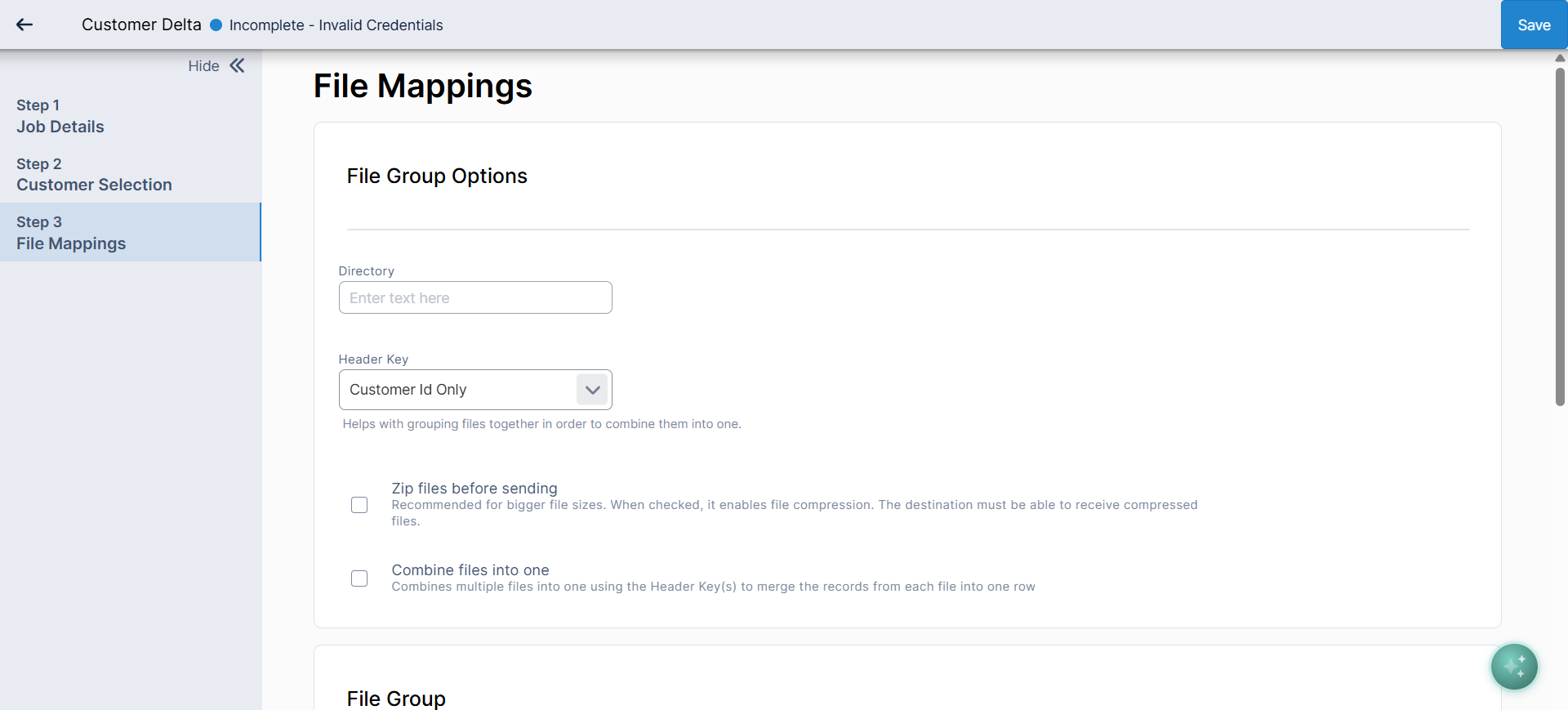
File Group Options
-
Directory: the folder on the FTP site or S3 bucket where files are delivered.
-
Header Key: the key used to group files, for example Customer Id Only. When files are combined, records are matched on this key.
-
Zip files before sending: compresses files. Recommended for large files, but your destination must be able to receive compressed files.
-
Combine files into one: merges the files into a single file, using the Header Key to put each record's data from every file on one row.
File Group
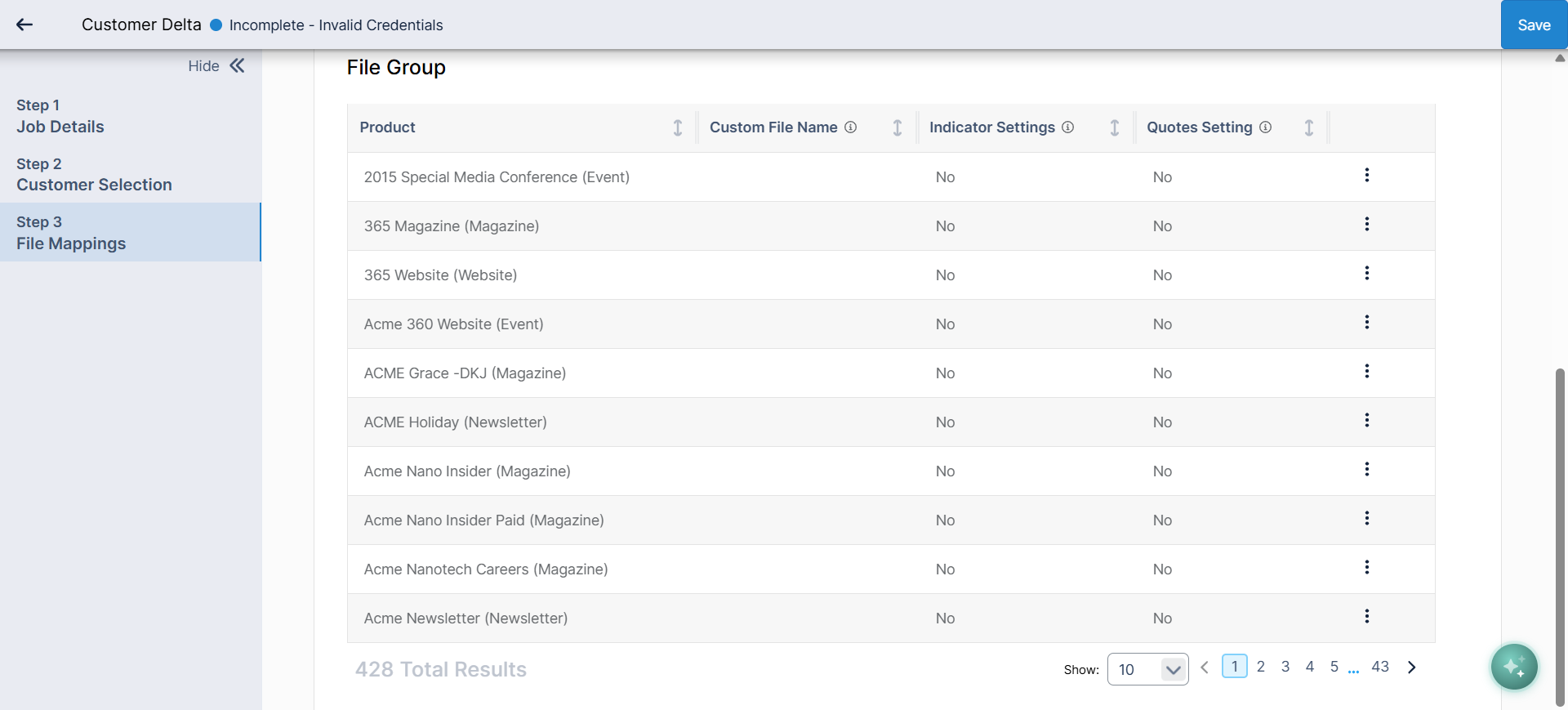
The File Group table lists every product on the database, along with its Custom File Name, Indicator Settings, and Quotes Setting. To map a product:
-
Open the menu (⋮) on the product's row and select Manage File Format.
-
On the Fields tab, expand a category under Available Fields (for example Customer Data, Email Data, Phone Data, or Postal Address) and add the fields you want to output if a change is detected for the product.
-
Under Selected Fields, set the Field Header for each field. This is the column name in the output file.
-
To add a column with the same value on every row, click Add Constant.
-
Review the Settings tab, then click Submit Files.
Repeat for each product. When you're done, click Save.
Managing existing jobs
-
Check what's mapped: in File Mappings, open a product's menu (⋮) and select View Mapped Fields. You'll see each field's name and output header. No Data means the product has no file format and won't be sent.
-
Change a mapping: select Manage File Format, update the fields, and click Submit Files.
-
Stop sending a product: select Remove File Format.
-
Fix an Incomplete job: open the job, correct what the status names (for example, re-enter credentials and click Test Connection), and save.
Table of Contents