
Overview
A triggered journey starts for a contact the moment they submit an Omeda form or complete a CredSpark interaction. Contacts don't wait for a scheduled audience send.
An audience journey starts from an Audience element and a Schedule, and processes everyone in that audience at the scheduled time. A triggered journey starts from a single trigger element and keeps listening. Each new submission enters that contact into the journey individually, including contacts submitting for the first time.
Available triggers
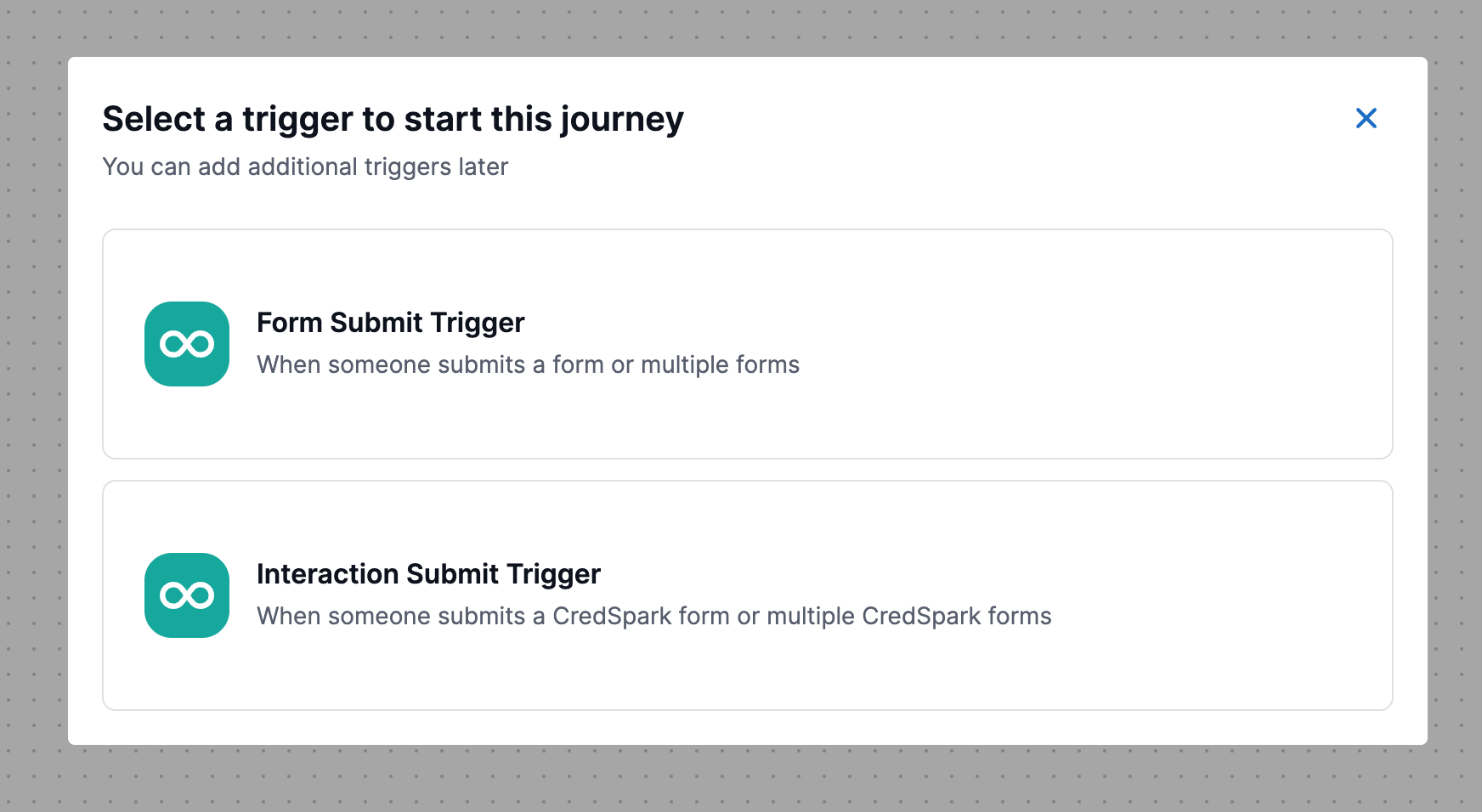
Two triggers are currently available. Each one can listen to more than one form or interaction at a time.
|
Trigger |
Starts the journey when |
Eligible sources |
|---|---|---|
|
Form Submit |
A contact submits an Omeda Form Builder form |
Forms that are published, active, and have Run Processor enabled |
|
CredSpark Interaction Submit |
A contact completes a CredSpark interaction |
Interactions that are published and active |
Forms or interactions that don't meet these requirements don't appear in the trigger's selection list.
Building a triggered journey
-
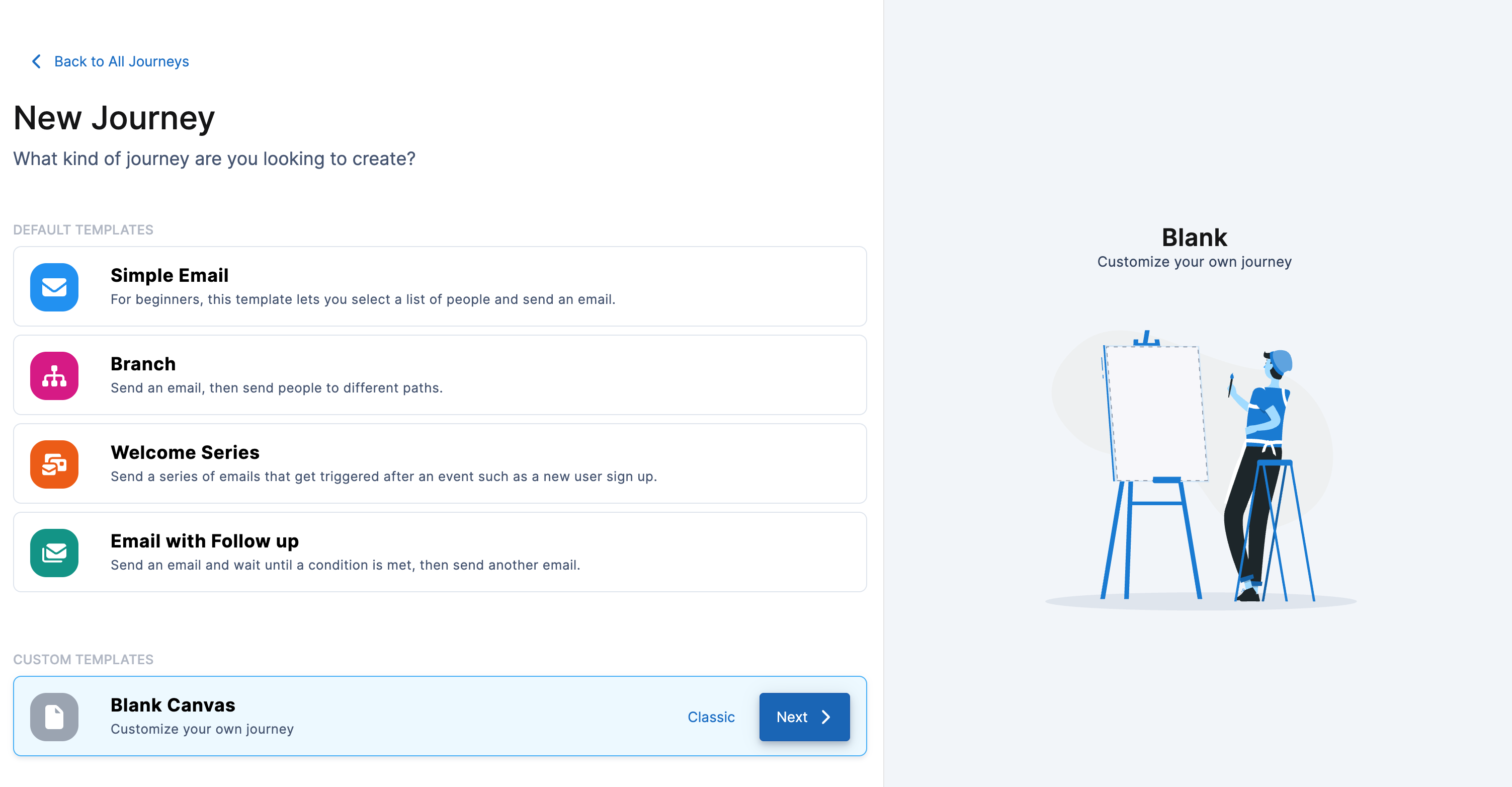
Create a new journey and click on the blank canvas option.
-
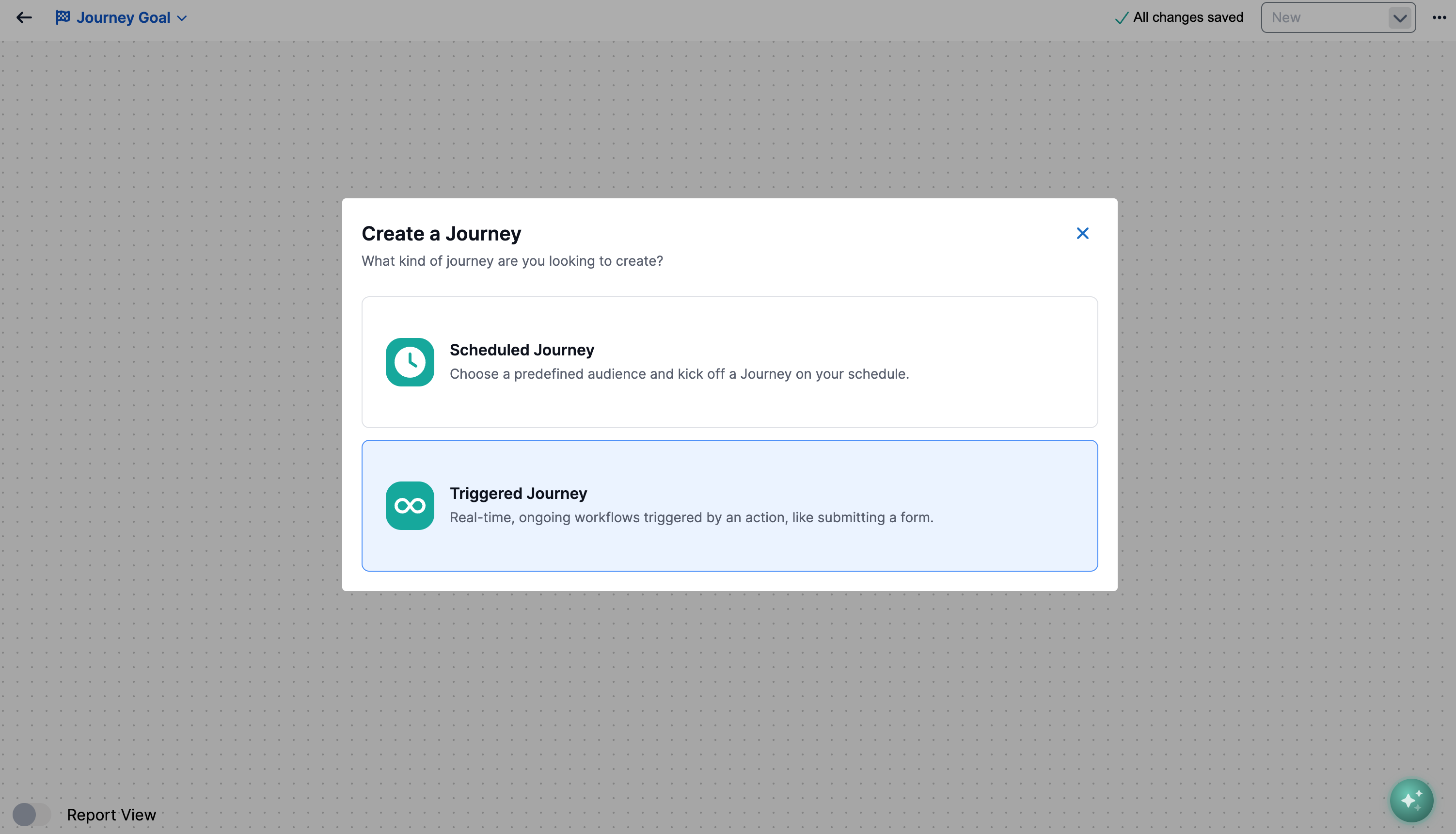
Select “Triggered Journey” from the Journey type selection modal.
-
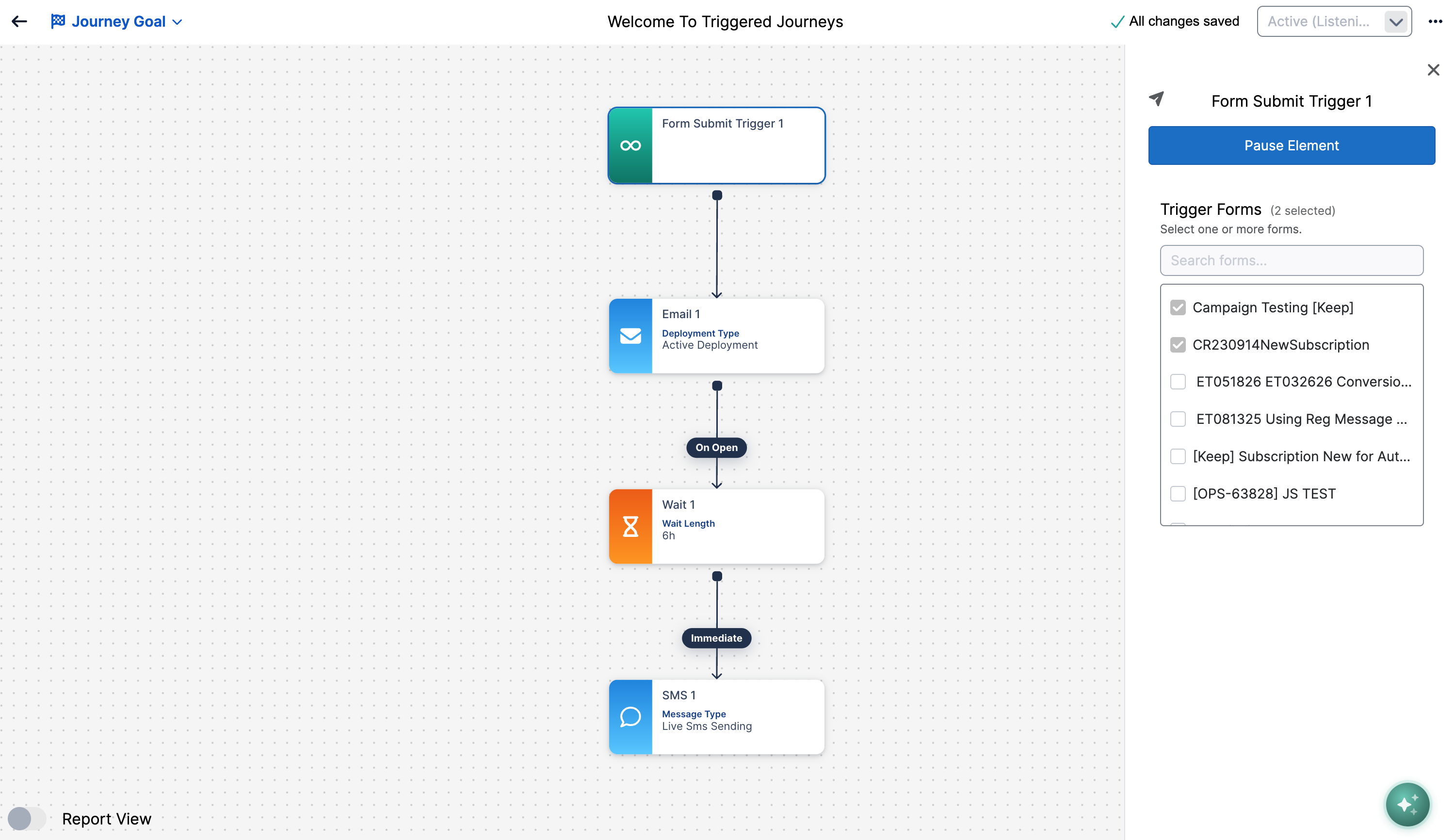
Select the Form Submit or Interaction Submit trigger to open its settings panel, give it a name, and choose one or more forms or interactions to listen to.
-
Add the communication elements that should run after a submission, and configure each one.
-
Save the journey.
These rules apply on the canvas:
-
Only one trigger can be used per Journey (Form Submit OR Interaction Submit).
-
Triggered journeys don't use a Schedule element. The journey runs whenever a submission arrives after the Journey is made “Active (Listening)”.
-
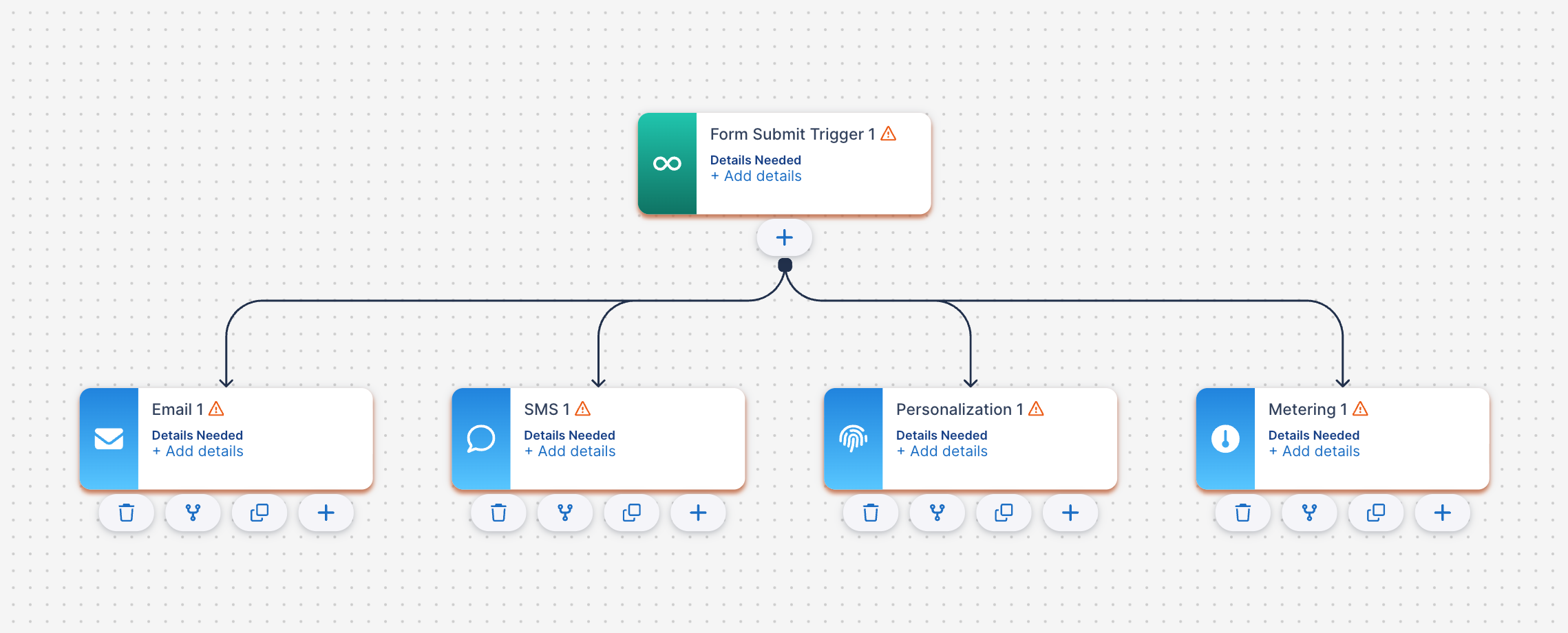
A trigger can connect directly to Email, SMS, Personalization, & Metering.
Activating and managing a triggered journey
A triggered journey only accepts submissions once you activate it. Publishing alone doesn't start it, so you can finish setup without contacts entering early.
After publishing, select Activate. The journey moves to Active (Listening) and starts entering contacts as submissions arrive.
|
Status |
What it means |
Submissions |
|---|---|---|
|
Published |
Saved and ready, but not yet activated |
Not entered |
|
Active (Listening) |
Live and waiting for submissions |
Entered as they arrive |
|
On Hold |
Paused from Active |
Not entered |
|
Canceled |
Stopped permanently |
Not entered |
To pause an active journey, place it On Hold. Only Form & Interaction submissions while a Triggered Journey is active will enter the Journey. Any submissions to forms or interactions while On Hold are not queued.
Trigger elements can be paused while the Journey is Active to change the selections of the eligible forms. Submissions while the trigger is paused will not qualify to enter the Journey.
Things to know
A trigger keeps its selections as long as the source remains eligible. For example, a form may be unpublished or have Run Processor turned off, and submissions from that source no longer start the journey.
Cloning a triggered journey copies its trigger name and selected forms or interactions, but can be modified before becoming Active.
Filters
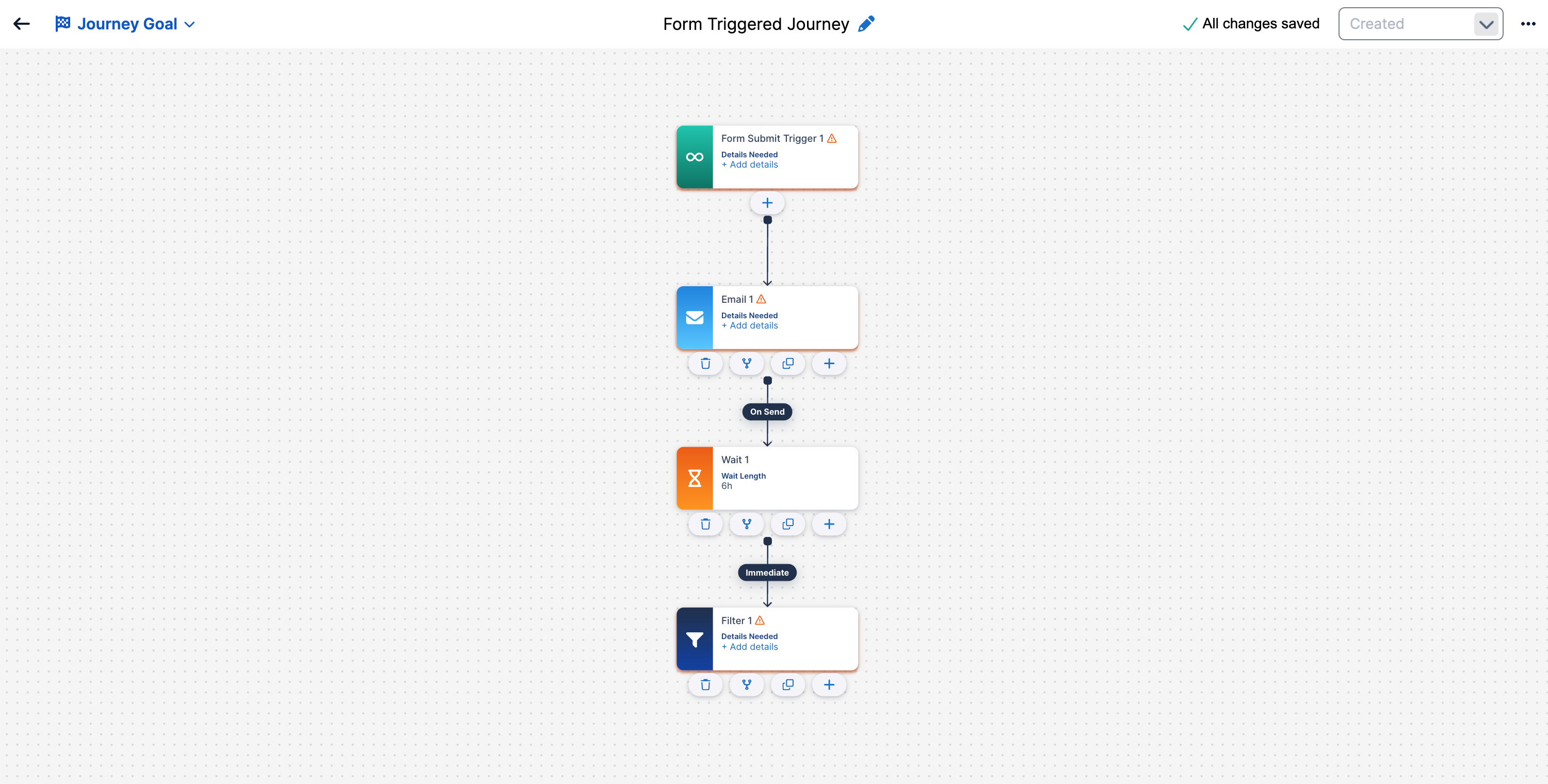
Filters in a triggered journey must come after a Wait. A contact's record is available the moment they submit, so Email, SMS, Personalization, and Metering elements can run right away. However, Audience Builder data updates on a schedule, so in order to Filter (query) off the submission data such as fields on the submitted form, a minimum wait of 6 hours is required.
Triggered journeys follow this path:
-
Trigger
-
Email, SMS, Personalization, or Metering
-
Wait of at least 6 hours
-
Filter and any other standard journey elements
The element library guides you along this path. After the first communication or activity element, only Wait and Stop are available. Once the required Wait is configured, the rest of the journey works like any other, and Filters can be used normally.
FAQ
Why doesn't my form appear in the Form Submit trigger's list? Only forms that are published, active, and have Run Processor enabled are listed. Check those three settings in Form Builder.
I published my journey, but submissions aren't entering it. Why? Triggered journeys need to be activated after publishing. Select Activate to move the journey to Active (Listening).
Can I use both triggers in one journey? No. A journey has one starting element. To respond to both a form and a CredSpark interaction, build a separate journey for each.
Can I add a Filter or Wait directly after a trigger? Not currently. A trigger connects directly to Email, SMS, Personalization, & Metering elements.
Table of Contents