
Available November 20. This article covers the new Audience Insights, which goes live on November 20. Until then, current dashboards work as they do today.
With build access, you can create your own dashboards in My Insights. A dashboard is a single page of cards, with optional headers, text, images, and dividers to organize them. Your dashboards are listed in the My Insights sidebar below Shared.
Dashboards are the simplest way to put cards together. If you need multiple pages, navigation, or more design control, build an app instead (see Building Your Own App).
Creating a dashboard
-
In My Insights, select Manage Dashboards at the bottom of the sidebar.
-
Select Add a Dashboard and enter a name.
-
Open the new dashboard from the sidebar.
There are two ways to add content:
-
From the toolbar: select + in the top right to add cards quickly. Cards are placed on the page automatically.
-
In edit mode: select Edit Dashboard to arrange cards in layouts and add headers, text, images, and other design elements.
Adding cards from the toolbar
Select + in the toolbar, then choose an option:
-
Add existing Card: choose from cards you've created or from the library of cards in Essential Insights.
-
Create new Card: build a new card. See Building a Card.
-
Assign Card creation: add a placeholder card to the dashboard for you or a teammate to build later.
You can also filter the dashboard from the toolbar. See Filtering a dashboard in Using My Insights.
Editing a dashboard
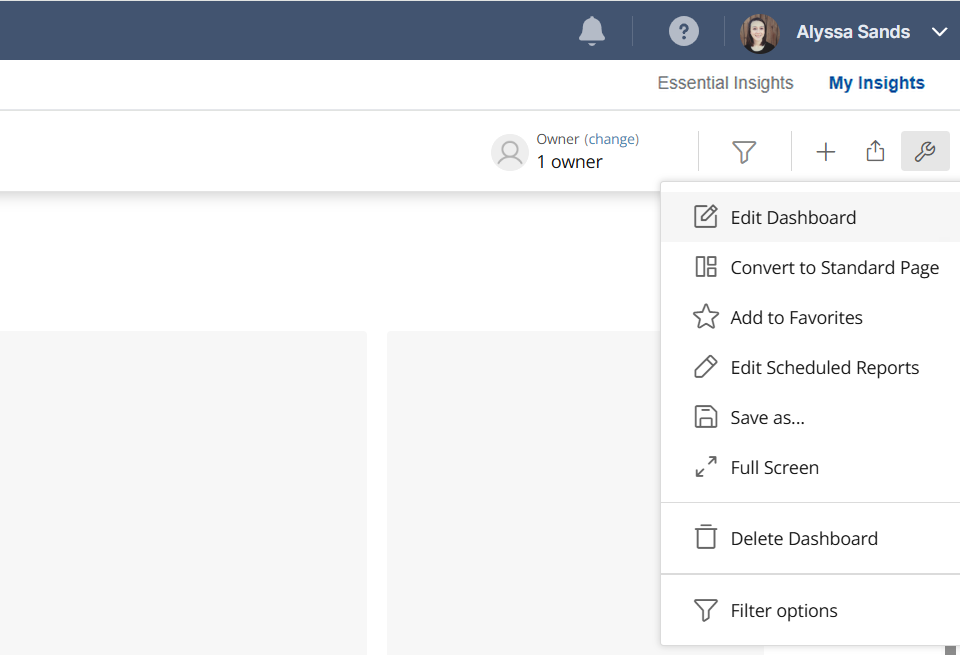
To open edit mode on a new, empty dashboard, select Edit Dashboard in the middle of the page. Once the dashboard has content, select the wrench icon in the toolbar, then select Edit Dashboard.
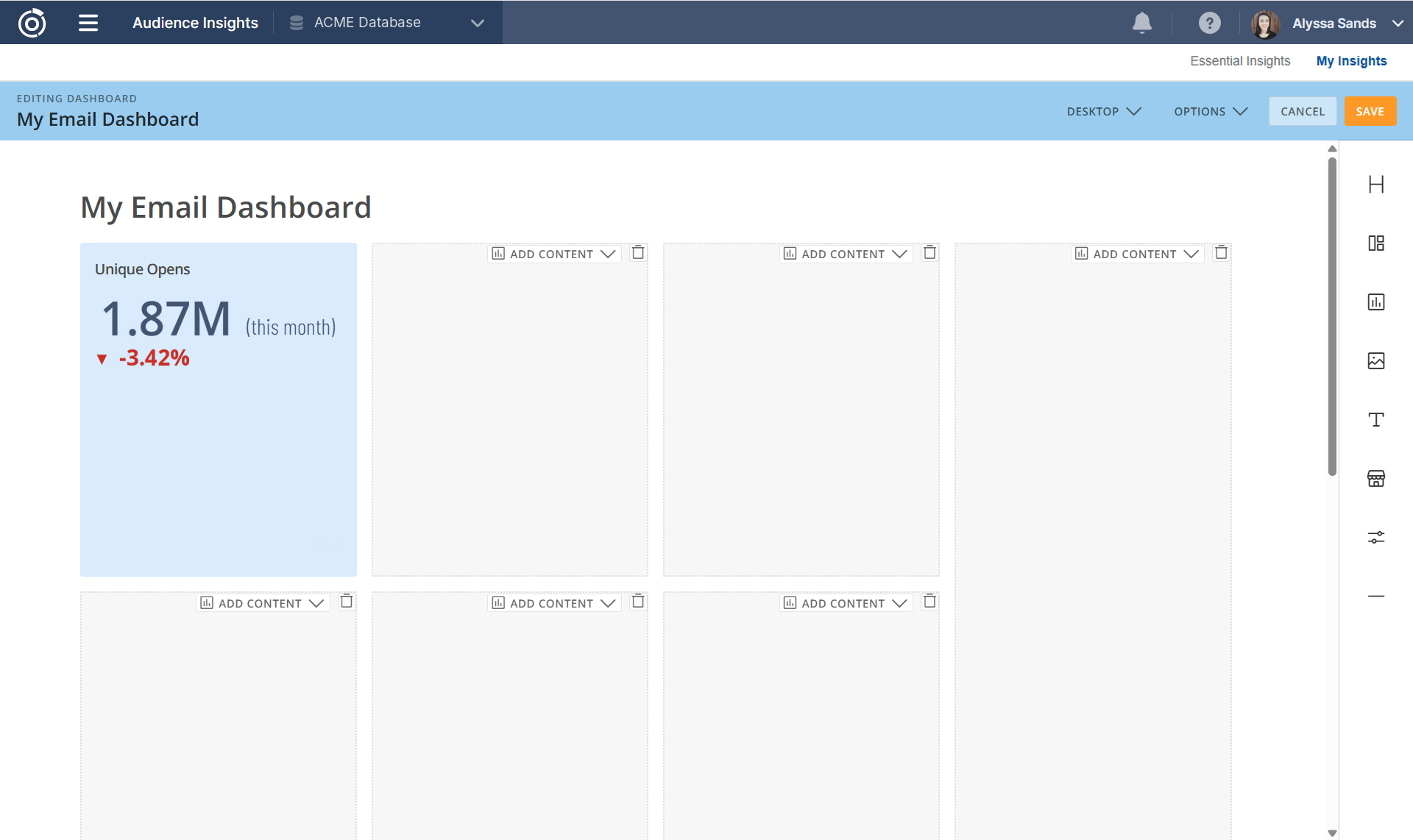
In edit mode, drag elements from the panel on the right onto the dashboard:
-
Header: heading text to divide the dashboard into sections
-
Layout: a template of card slots. Add cards to the slots with Add Content.
-
Card: an existing card
-
Image: an uploaded image
-
Text: written text, using the rich text editor
-
App: a special element from the Domo App Store
-
Control: a control that lets viewers change the value of a variable used by cards on the dashboard. You can only add a control if a card on the dashboard uses a variable.
-
Border: a horizontal line to separate sections
Changing a card on the dashboard
In edit mode, select Edit Content at the top of a card to open its options:
-
Edit Card and Edit Card title & description: edit the card itself. These are only available for cards you can edit.
-
Appearance and Change background: change how the card looks on this dashboard
-
Change interaction: choose what happens when someone clicks the card
-
Change filter exceptions: choose which dashboard filters apply to this card
-
Choose different Card: replace the card in this slot
-
Remove: remove the card from the dashboard
Desktop and Options menus
The bar at the top of edit mode has two menus:
-
Desktop: switch between editing the Desktop and Mobile layouts of the dashboard
-
Options: Change background for the whole dashboard, choose a Display mode, and turn Page breaks on or off
Saving your changes
Select Save in the top right to save your changes, or Cancel to discard them.
Renaming and reordering dashboards
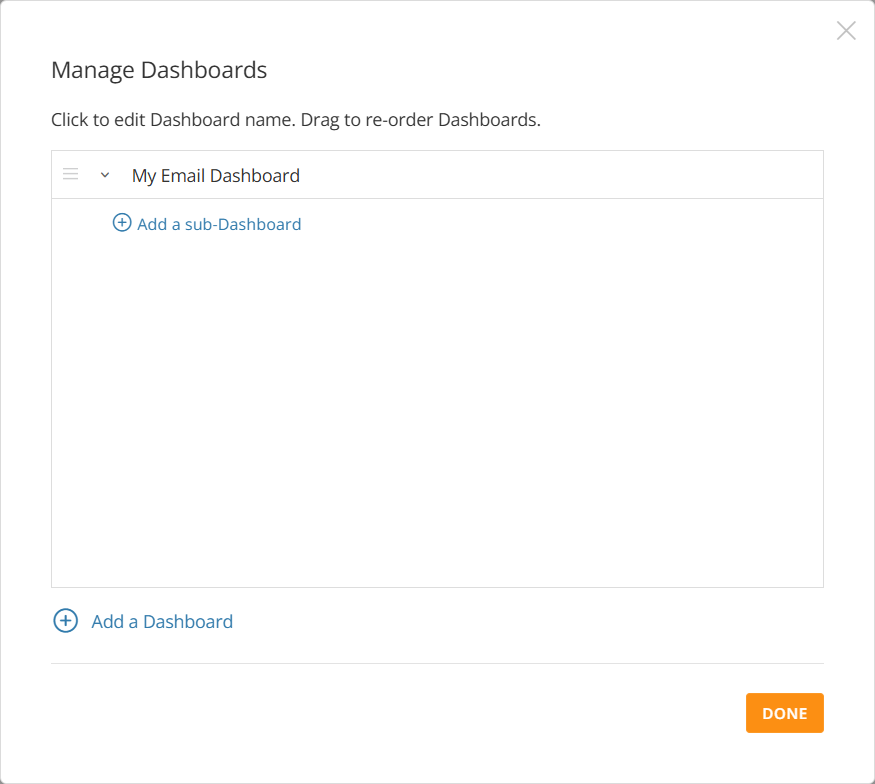
In Manage Dashboards, select a dashboard's name to rename it, or drag dashboards to change their order in the sidebar.
To nest a dashboard under another one, select the arrow beside the dashboard's name, then select Add a sub-Dashboard. Select Done when you're finished.
To delete a dashboard, open it, select the wrench icon in the toolbar, then select Delete Dashboard.
Additional Resources
-
Using My Insights
Find your dashboards, favorites, and shared cards, and filter or share a dashboard. -
Building a Card
Create a new card and build it in Analyzer. -
Audience Insights Data Sources
Review the datasets and fields available when you create a card. -
Building Your Own App
Build a multi-page app with more design control.
Table of Contents