
Available November 20. This article covers the new Audience Insights, which goes live on November 20. Until then, current dashboards work as they do today.
My Insights is your personal workspace in Audience Insights. Open the My Insights tab in the top right corner of Audience Insights. It opens on your Overview dashboard. From there you can find apps, review cards that are shared with you or that you've favorited, and, with build access, create your own dashboards.
The My Insights sidebar
The sidebar on the left lists everything in My Insights:
-
Apps: opens the Apps page, where you find Essential Insights and any other apps you own or that are shared with you
-
Overview: your personal dashboard
-
Favorites: cards you've favorited
-
Shared: cards other users have shared with you
-
Your dashboards, listed below Shared
-
Manage Dashboards: rename, reorder, and add dashboards
Use Filter by name at the top of the sidebar to find a dashboard, and the pin icon to keep the sidebar open.
Your Overview dashboard
Overview is your personal landing page. Add the cards you check most often so they're in one place when you open My Insights. Overview is always private: other users can't see it, and it can't be shared directly. To share it, save a copy as a dashboard (see Sharing your Overview).
Adding cards to Overview
-
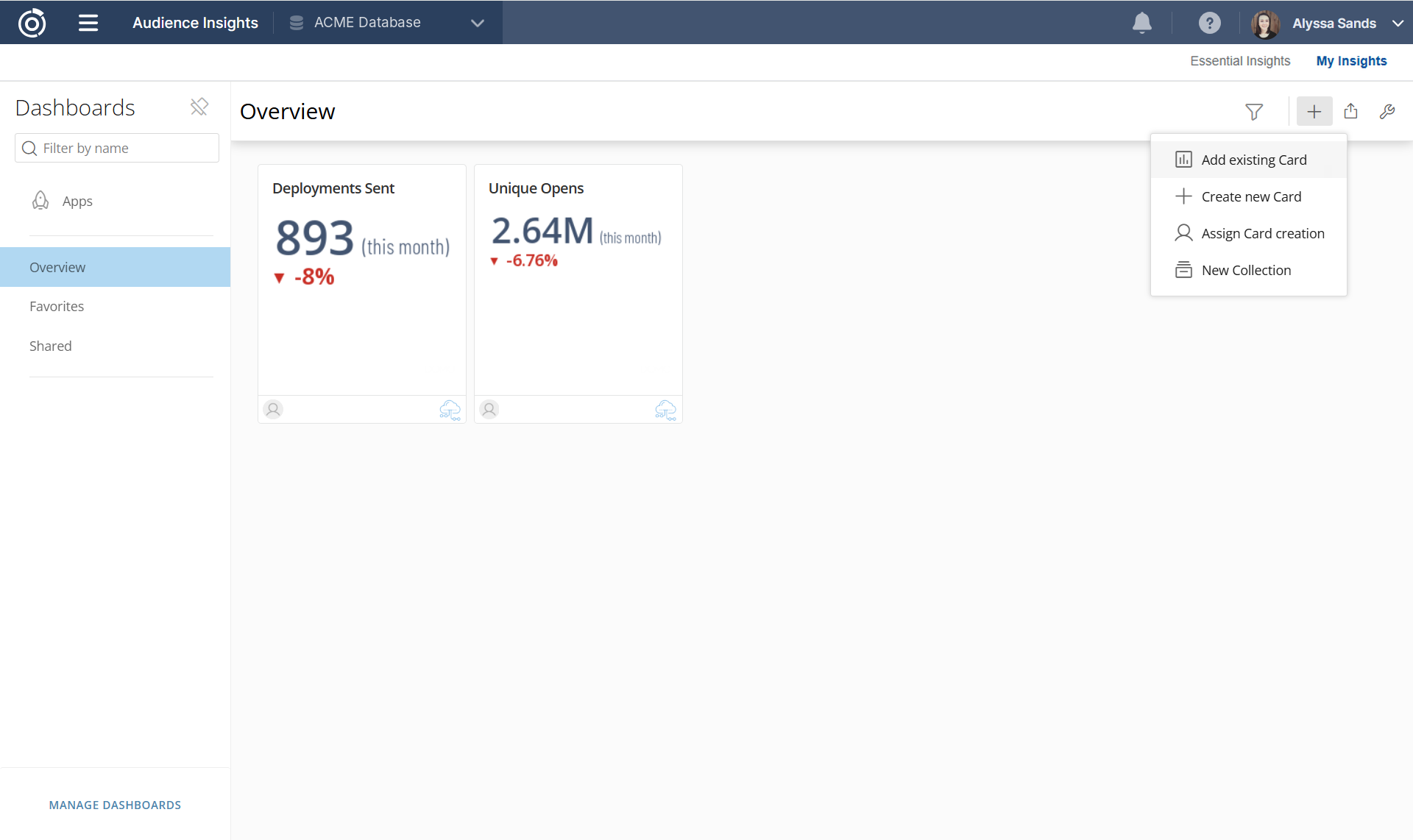
Select + in the toolbar at the top of the dashboard.
-
Select Add existing Card.
-
Search for the card, then select it to add it to the dashboard.
Drag cards to rearrange them.
Sharing your Overview
-
Select the wrench icon in the toolbar at the top of Overview.
-
Select Save as... and name the new dashboard.
-
Open the new dashboard from the sidebar and share it (see Sharing below).
The new dashboard is a copy. Changes you make to Overview afterward don't carry over to it.
Favorites and Shared
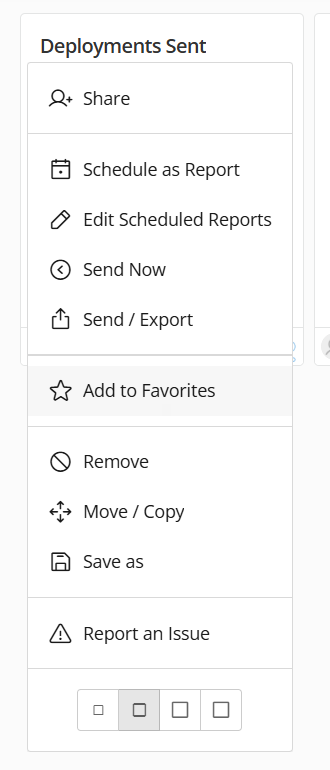
Favorites lists the cards you've favorited. To favorite a card, open its Card Details page, select the Card options icon (wrench), then select Add to Favorites. You can also favorite apps; favorited apps appear under Favorites on the Apps page.
Shared lists every card other users have shared with you. Apps shared with you are on the Apps page under Shared with you.
Grouping cards into collections
On Overview, Favorites, and Shared, you can sort cards further by grouping them into collections.
-
Select + in the toolbar at the top of the page.
-
Select New Collection.
-
Name the collection, then drag cards into it.
To open or close every collection on the page at once, select the wrench icon, then Expand all Collections or Collapse all Collections.
Dashboard toolbar
The toolbar in the top right of Overview, Favorites, Shared, and your dashboards has these tools:
-
Filter: open the filter bar to filter the cards on the page (see Filtering a dashboard)
-
+: add a card or a collection
-
Share: share, export, or schedule the dashboard (see Sharing, exporting, and scheduling a dashboard)
-
Wrench: Expand all Collections, Collapse all Collections, Save as... (save a copy as a new dashboard), Turn on interaction filters (selecting a value in one card filters the other cards on the page), and layout options for how cards are arranged on the page
Filtering a dashboard
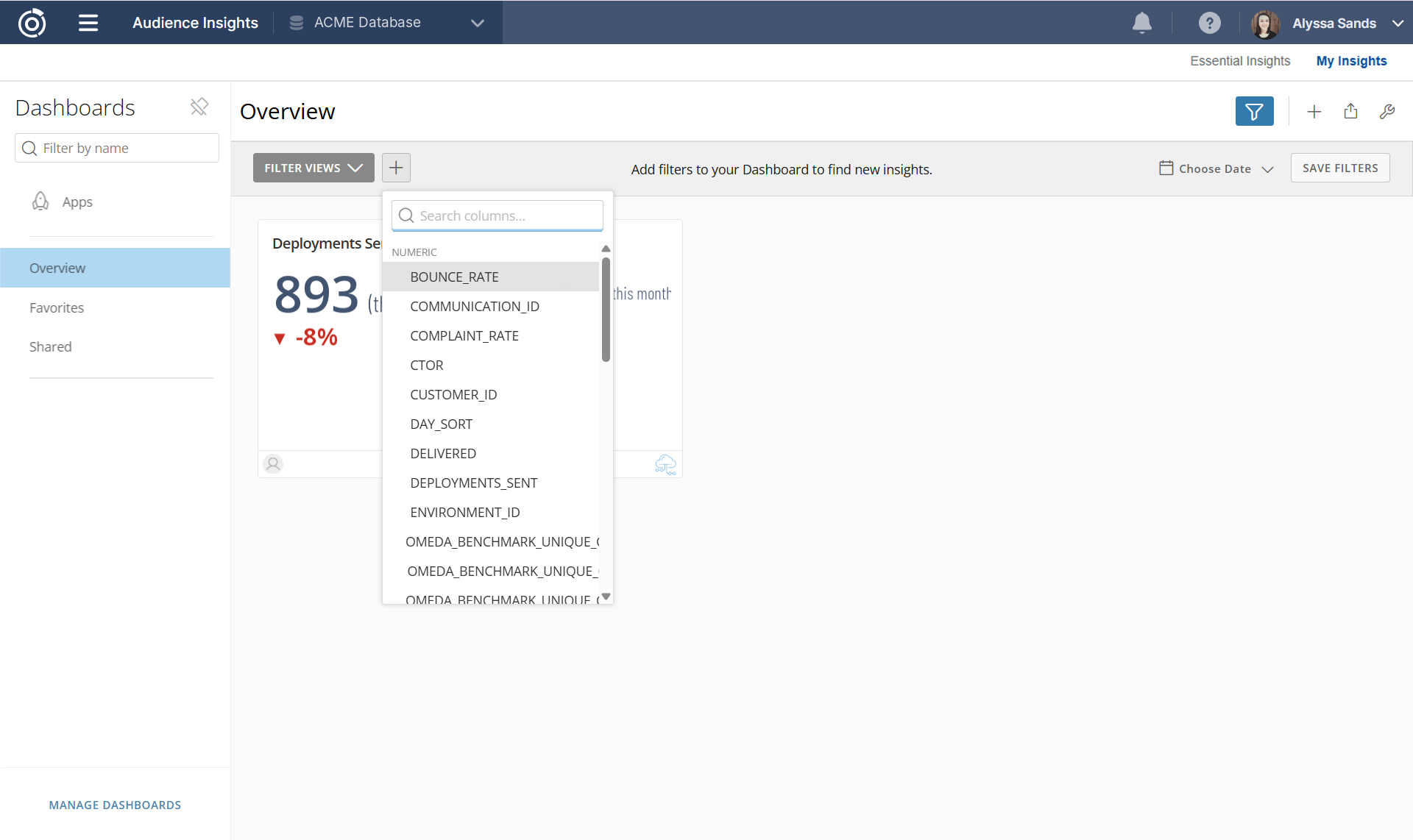
Select the filter icon to open the filter bar below the toolbar.
-
Select +, then search for or choose a column. The list includes the columns and calculated fields from the datasets behind the cards on the page.
-
Choose the values to filter by.
-
Optional: use Choose Date to set a date range.
-
To keep the filters for later, select Save Filters and name the view.
Your saved views are listed under Filter Views on the left side of the filter bar.
Finding apps
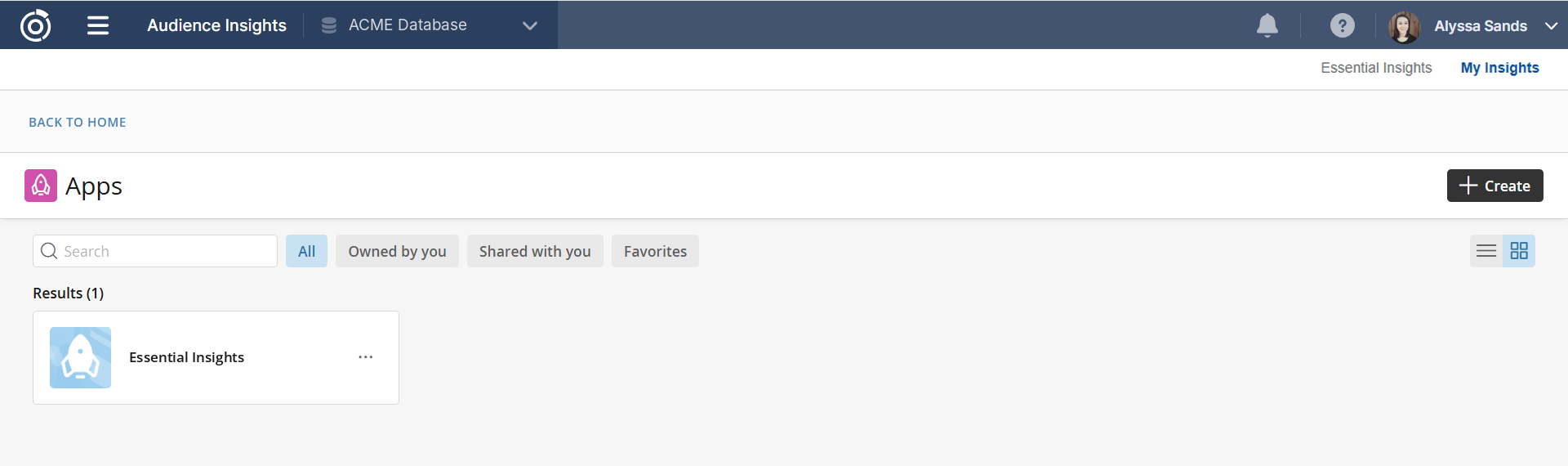
Select Apps at the top of the sidebar to open the Apps page. Essential Insights is listed here under Shared with you, along with any apps you've created or that others have shared with you.
-
Use the filters to narrow the list: All, Owned by you, Shared with you, or Favorites.
-
Search for an app by name.
-
Switch between list and grid layout.
-
Select an app tile to open the app. The ... menu on a tile has more options, such as Favorite.
Select Back to Home to return to My Insights. To create your own app, see Building Your Own App.
Creating your own dashboards
With build access, you can create your own dashboards from Manage Dashboards at the bottom of the sidebar. Your dashboards are listed in the sidebar below Shared. For how to create a dashboard, add and build cards, and arrange the layout, see Building a Dashboard.
Sharing, exporting, and scheduling a dashboard
Sharing requires build access. Select the share icon in a dashboard's toolbar to open these options:
-
Share: enter users or groups, then select Share. You can also select the person icon next to the owner in the toolbar.
-
Change owner: make someone else the dashboard's owner
-
View Page as Slideshow: present the dashboard's cards one at a time
-
Export as PowerPoint or Export as PDF: download the whole dashboard
-
Schedule as Report: email the dashboard on a schedule. The steps are the same as scheduling a card (see Using Essential Insights).
-
Send Now: email the dashboard right away
To share a single card, expand it, select Card Options (...), then select Share. See Using Essential Insights for the full steps. To share an app, see Building Your Own App.
Additional Resources
-
Audience Insights Overview
Learn the difference between cards, dashboards, and apps, and what each access level can do. -
Using Essential Insights
Navigate, filter, export, and schedule the prebuilt Essential Insights pages. -
Building a Dashboard
Create a dashboard, add cards, and arrange the layout. -
Building a Card
Create a new card and build it in Analyzer. -
Building Your Own App
Start a new app from Essential Insights and customize it.
Table of Contents