
Omeda Journey creators can leverage the Goals to track the success of their Journeys and remove audience members within the Journey that have met the goal. This will prevent audience members from receiving additional marketing efforts if they have already met the purpose of the Journey.
After adding an Audience element to your Journey canvas and clicking the element, the Journey creator can then provide their Goal Criteria in the element inspector on the right side of the canvas.
Using the Goal Element
You can add a goal to a Journey by clicking ‘Journey Goal’ drop down at the top left of the canvas.
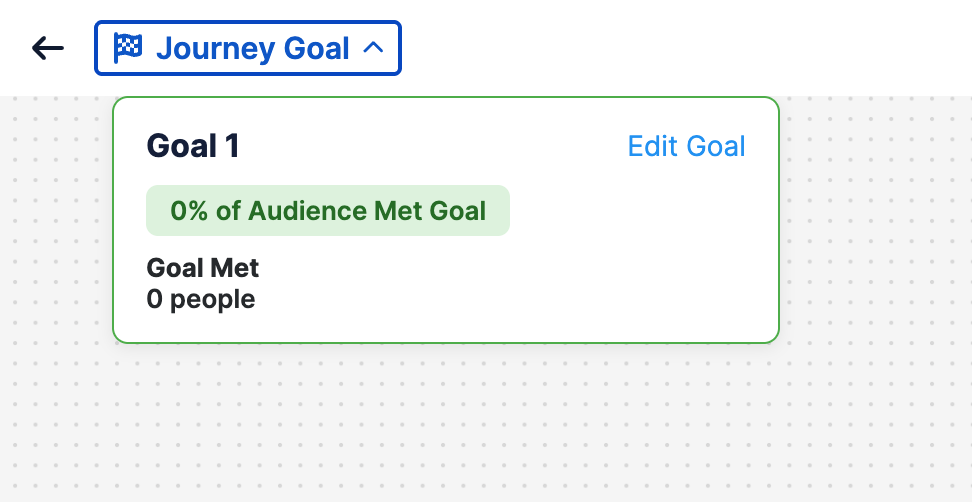
Once clicked, select Set Journey Goal (or Edit Goal if one has already been created) and the Goal inspector will appear.
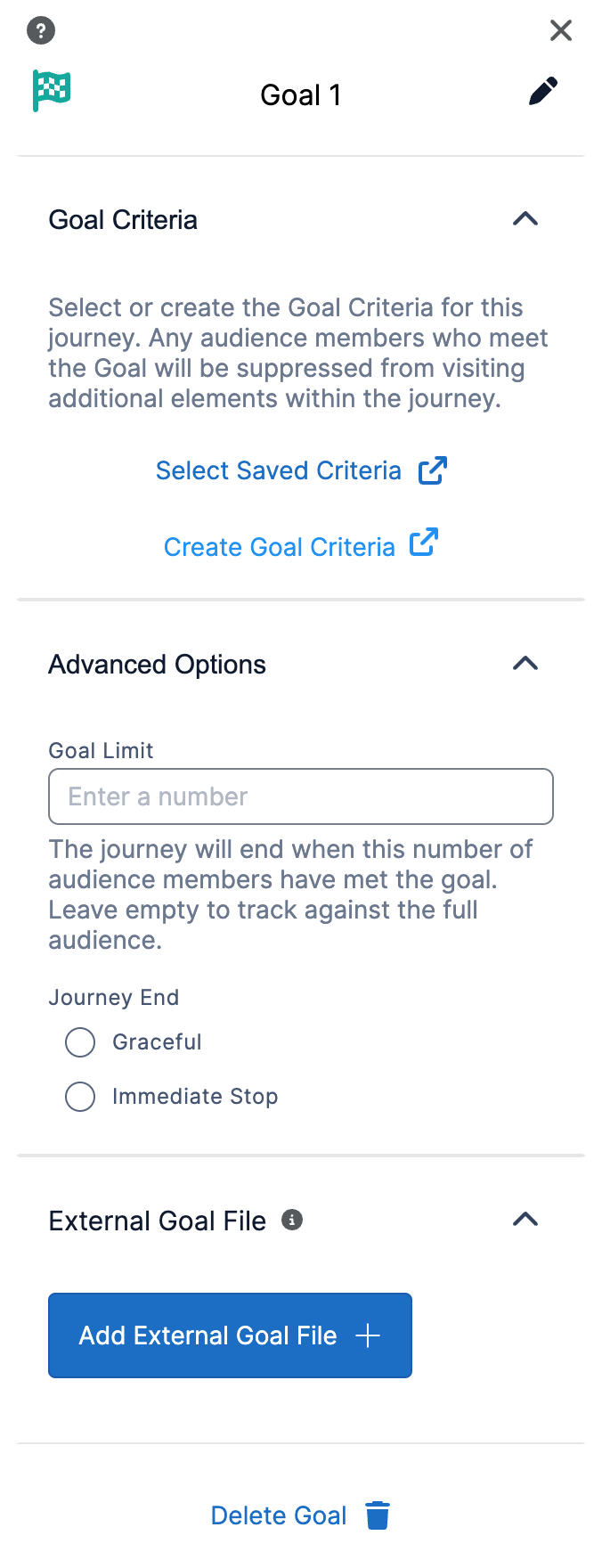
Within the Element Inspector on the right side of the canvas, there will be three pleats:
-
Goal Criteria : In this pleat, you can select an Audience Builder query or create a new one that represents the goal for your Journey. For example, if your Journey is promoting an event, your query would consist of all registrants for that event.
-
External Goal File : In this pleat, you can upload an External Goal File if the audience members who meet the goal are stored in another system. A Customer Id or Email Address is required in your external file.
-
Advanced Options : In this pleat you can optionally choose to set a Goal Limit for the Journey. This will allow you to automatically end your Journey either Gracefully or Immediately, when a set number of passengers have met the Goal. A Graceful end will allow the passengers to who have already entered to Journey to complete it but will not allow new passengers to enter. An Immediate end will immediately end the Journey when the limit is hit.
When a Journey with a Goal is In Progress, each audience member within the Journey will be checked against the goal element every 30 minutes. If an audience member meets the criteria, they will be suppressed from visiting additional elements in the Journey.
Additionally, the Goal element can be paused and additional External Goal Files can be added while the Journey is In Progress.
As the Journey progresses, you can see the progress of the goal itself by clicking on the Journey Goal drop down. Goals without a limit set will display a percentage of the audience who have met the goal, along with the total count of people who have met the goal. Goals with a limit set will show a total count of people who have met the goal, against the limit, along with a percentage of progress to completion.
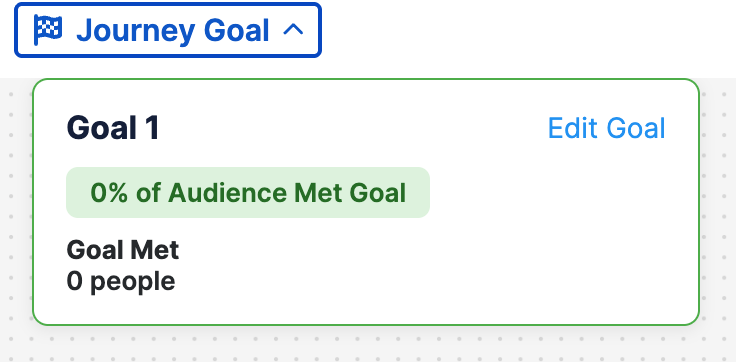
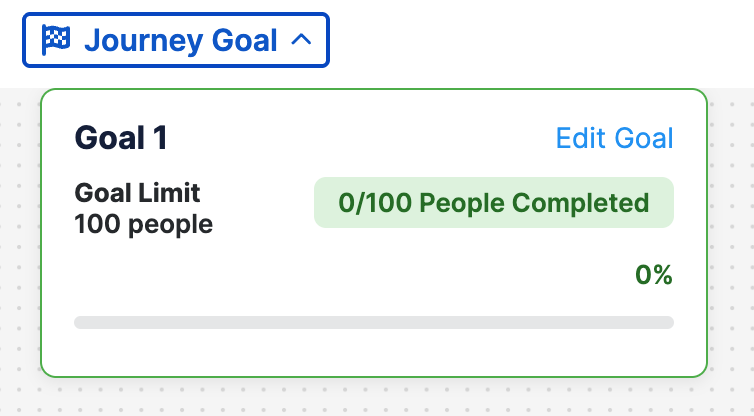
Table of Contents