
The SMS element can be added to any Omeda Journey and can be used to create an SMS Message that will deploy to your audience.
After adding an SMS element to your Journey canvas and clicking the element, the Journey creator can then provide the SMS details within the element inspector on the right side of the canvas. Please note, in order to see the SMS element in Journey, the “Manage SMS Element” Journey permission must be enabled.
Using the SMS Element
The Element Name will be set to “SMS 1” by default but this can be edited to better describe the SMS in the context of your Journey.
There are three sections within the SMS element:
-
Message Details
-
Message Content
-
Testers & Seeds
Message Details
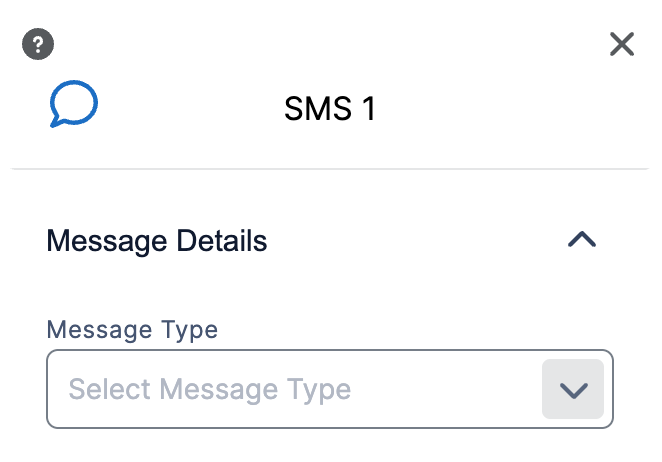
Within the Message Details section, the following field is available.
-
Message Type: Here you can select the appropriate message type for the content that you are sending. Selecting the message type will do several things:
-
Messages will send from the phone number associated with the message type.
-
Opt out responses will be associated with this message type.
-
Audience members that have previously opted out of this message type will be automatically suppressed. It is also recommended that opt outs from this message type are suppressed from your Audience Sources, so that your counts accurately reflect what will be delivered.
-
Message Content
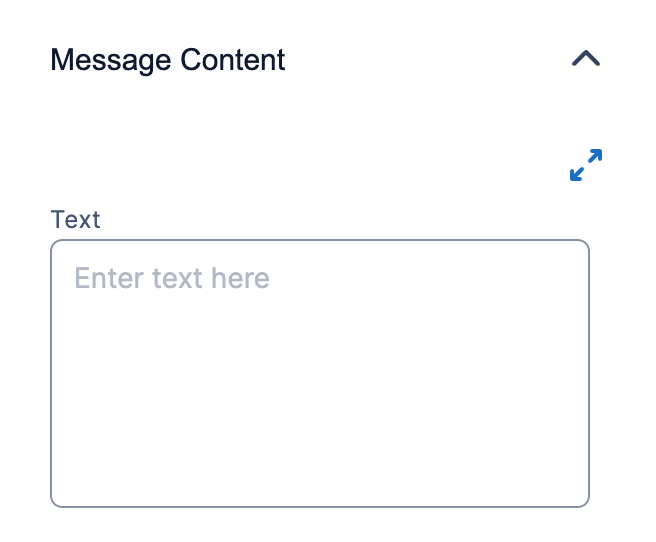
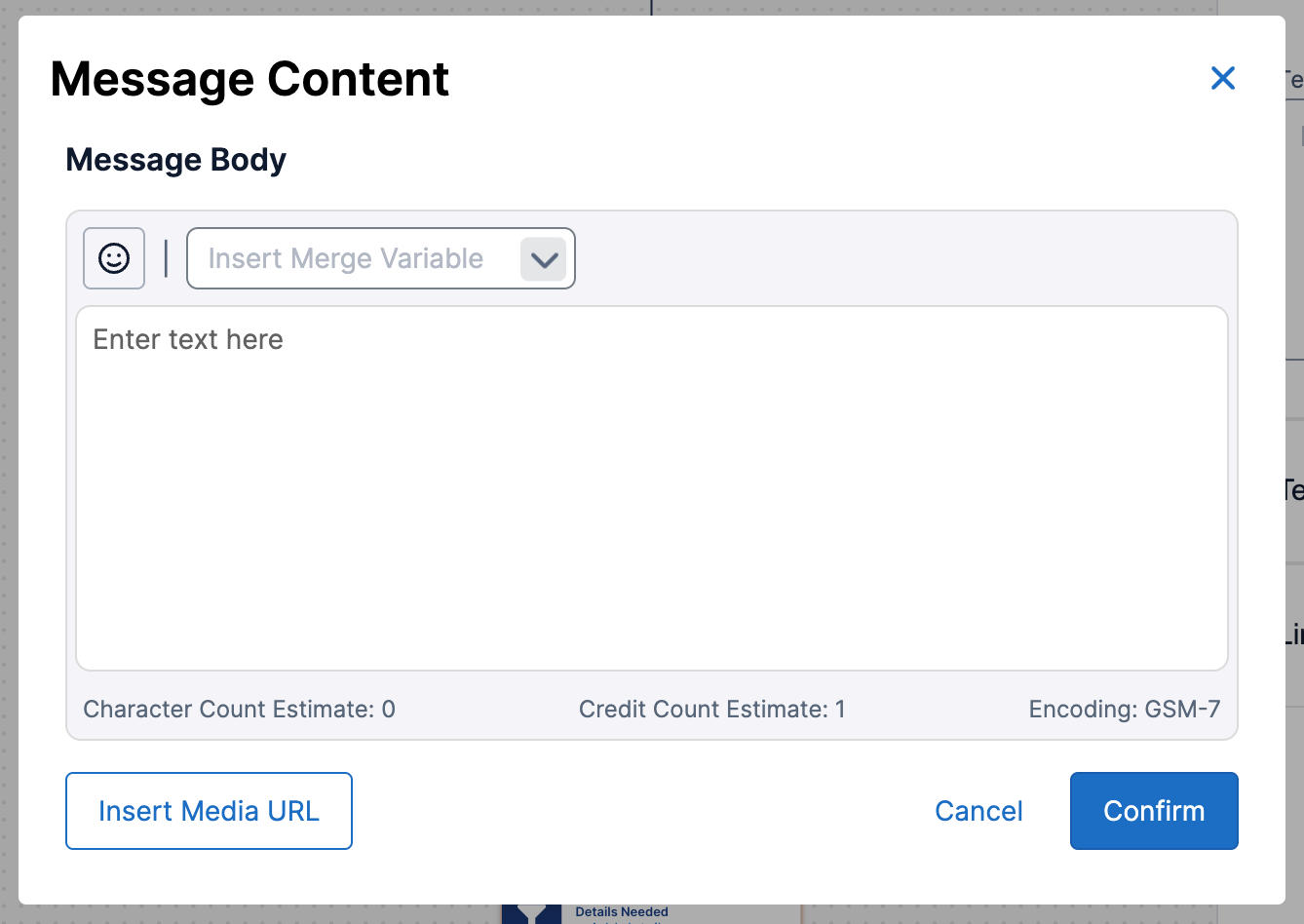
This section is where you can create the content of your SMS message.
Click the ‘Expand’ icon on the top right to insert Emojis, & merge variables.
Testers & Seeds
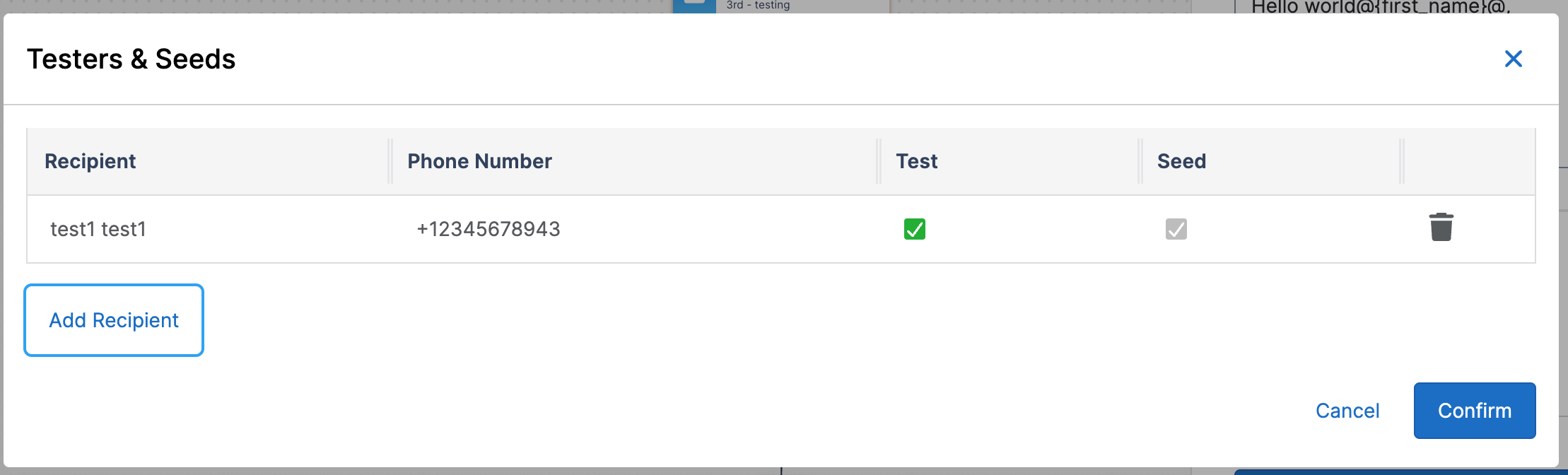
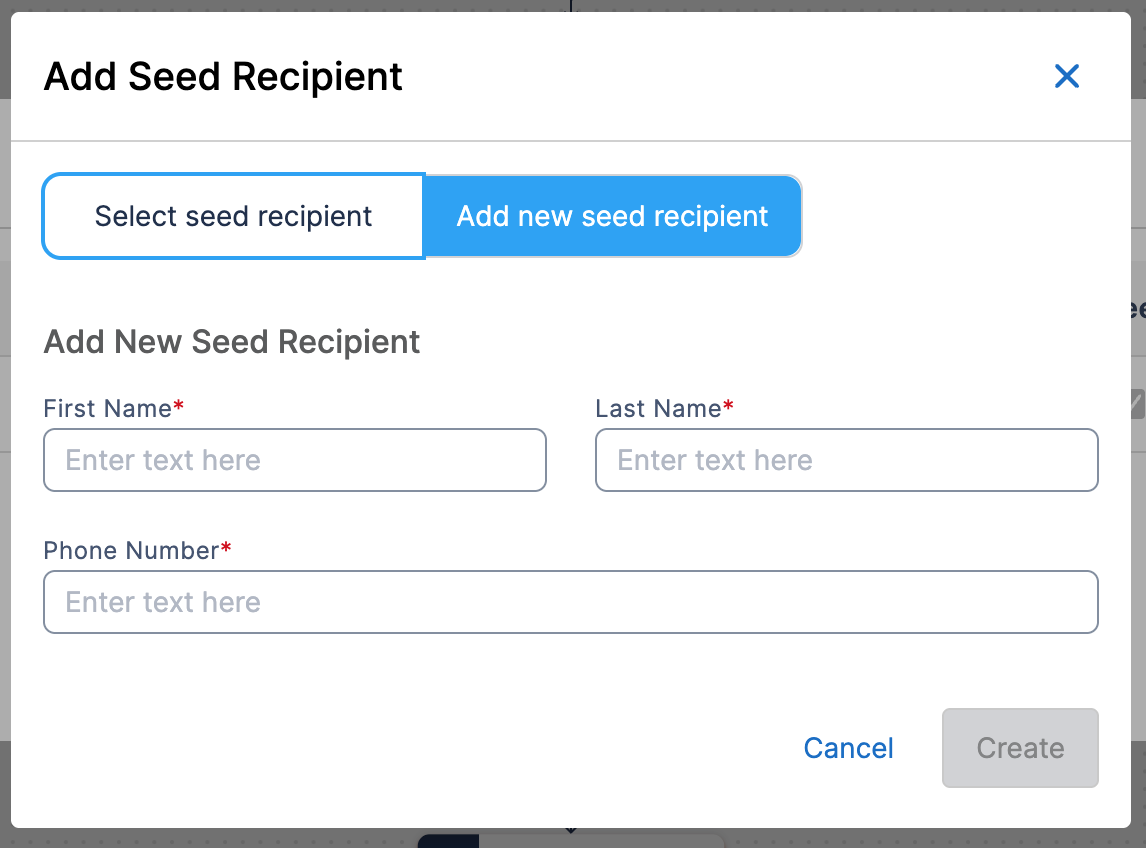
In this section you can review and modify the Testers and Seeds for this SMS Message and create new Tester or Seed recipients.
Testers & Seeds will be indicated by a green checkbox in their respective column. A Tester or a Seed can be removed by clicking the ‘Trash’ icon in the Action column.
New records can be added by clicking on Add Recipient, searching for a previously added recipient, or clicking on “Add new seed recipient” to create a new record.
After making changes click Confirm.
Please note that sending test SMS Messages will consume SMS credits. Allowed credits for a month/year are setup in Settings (Organization Info > Contract Usage Details - only visible to a user with the related legacy permission). In general we are charged 1 credit per segment (a segment is 160 chars of text), but MMS messages are charged 3 credits per segment.
Using the SMS Element after Publishing Your Journey
When your Journey is saved for the first time it will move to the status ‘Published’. This will allow you to review the Link Tracking settings that will be applied to your content as well as allow you to send a Test send.
Link Tracking
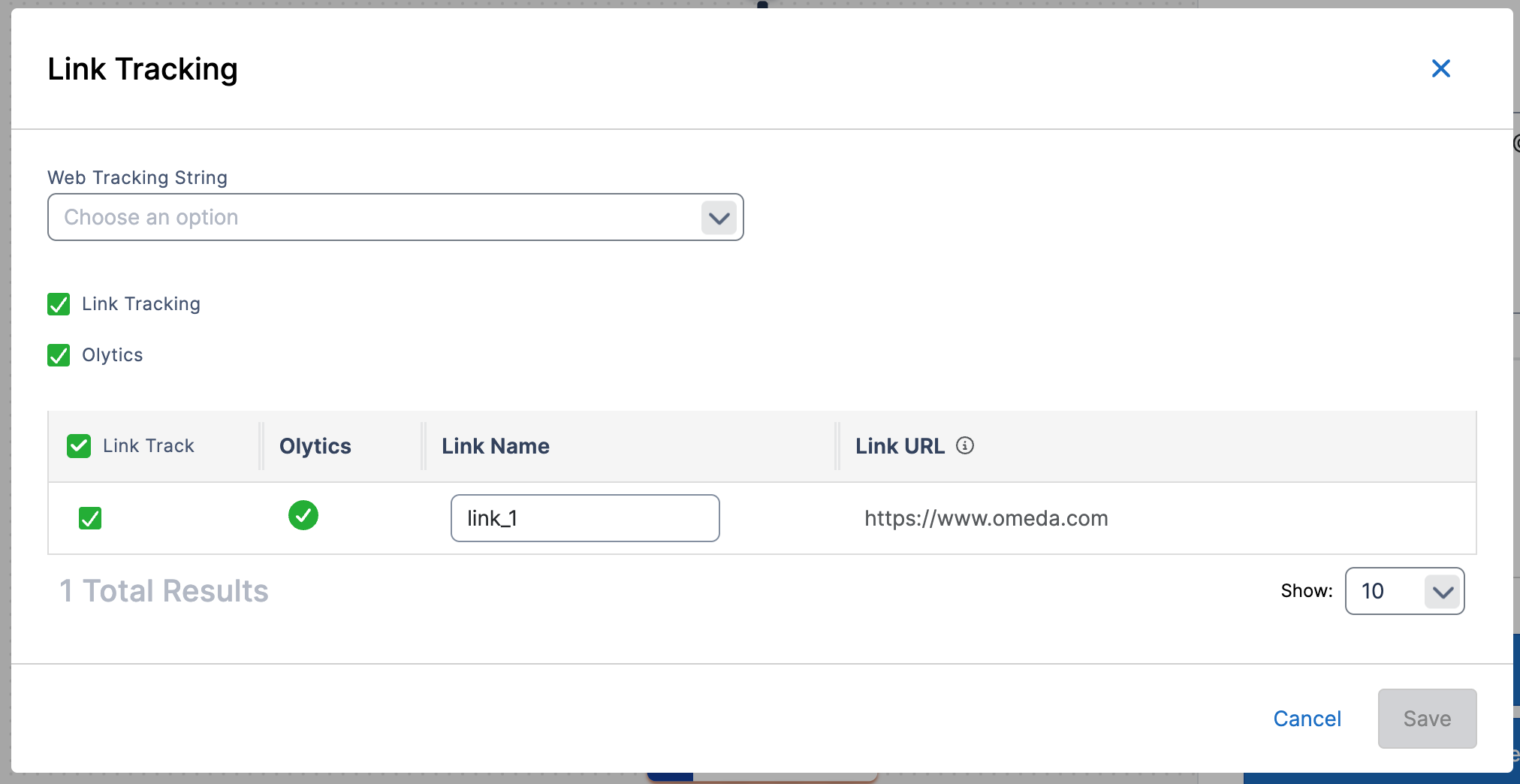
When the ‘Manage Link Tracking’ button is clicked in the Link Tracking section of the SMS element, the above modal will open, displaying the links that exist in your content and their link tracking settings.
By default, Link Tracking & Olytics will be enabled.
Each link can be expanded and the default link name can be change, as well as the tracking settings.
Sending Tests
At the bottom of the SMS Inspector, two buttons will appear to allow you to send a test of your message.
-
Send Test: this option will send a Test SMS to all Testers for manual review on the recipients devices.
-
Send to One: this option will allow you send the SMS to one phone number.
Using the SMS Element while a Journey is In Progress
The initial release of SMS Element in Journey does not support pausing when a Journey is in progress.
Connections and the SMS Element
Each element in a Journey can be connected to and from a subset of other elements. The available connections for the SMS Element are listed below.
|
These elements can connect to a SMS element |
These elements can be connected from an SMS element |
|---|---|
|
Schedule
|
Wait
|
Additional Resources
Table of Contents